

 The PDF editor market is booming with more than 100 options across the globe. Users now face a crucial challenge to pick the right tool from this vast selection.
Free software works fine for basic PDF viewing. However, users just need more powerful solutions for serious document work. The market shows promising growth with an 11.5% CAGR and should reach $4.1 billion by 2032. Windows users have the best options since this platform dominates the digital world of PDF editors.
My team tested over 30 PDF tools and spent more than 200 hours on research. This complete guide compares the best PDF editor software for Windows users in 2025. Adobe Acrobat Pro leads the pack as one of the most powerful PDF managers available. The guide covers everything from premium tools to free options like PDF24 Creator. Each software review gives you a full picture of features, pricing, and ideal use cases to help you make the right choice.
Adobe Acrobat Pro

Image Source: Adobe
Adobe, the original creator of PDF format, offers Acrobat Pro as its flagship document editing solution. Acrobat Pro 2024 comes with a user-friendly interface that helps you find tools faster and makes everyday PDF tasks simpler [1].
Key Features
Adobe Acrobat Pro goes beyond simple PDF viewing with a complete toolset. Users can create PDFs from Microsoft Office documents, HTML, and scanned papers. The software has advanced OCR (Optical Character Recognition) technology that converts scanned documents into fully searchable and editable PDFs [1]. It also lets users edit text, swap images, and fix typos directly within PDFs [1].
The software stands out in document security through password protection, permissions settings, and permanent redaction of sensitive information [1]. Acrobat Pro makes shared work easier with tools to request e-signatures, track document status, and set automated reminders [1]. Recent updates give you the power to select and extract discontinuous pages from thumbnails and create forms from scratch using blank pages [1].
Pros and Cons
Pros:
-
Complete PDF editing capabilities
-
Smooth integration with other Adobe products
-
Cross-platform availability (Windows, macOS, iOS, Android, web) [2]
-
Advanced document security and encryption options [3]
-
Increased efficiency features for users with disabilities [1]
Cons:
-
Higher price point compared to competitors [4]
-
Performance can be slow on some systems [4]
-
Steep learning curve for first-time users [4]
-
Subscription model may not appeal to all users [4]
-
No simple whiteout tool (only more complex redaction) [2]
Pricing
Adobe Acrobat Pro comes with several pricing options. The subscription-based version costs $19.99 monthly with an annual commitment or $239.88 annually when paid upfront [2]. Users who want month-to-month flexibility will pay $29.99 monthly with no commitment [2].
A lower-featured Windows-only version, Acrobat Standard, costs $12.99 monthly with annual commitment or $155.88 paid annually [2]. Users who prefer perpetual licenses can get older versions (Acrobat Pro 2020) for a one-time payment of $538.80 [2].
Best For
Adobe Acrobat Pro serves professionals and businesses that need advanced document management capabilities. The software works best for legal firms, educational institutions, and corporate environments where document security, compliance, and accessibility matter most [3]. Organizations using the Adobe ecosystem benefit from smooth integration between Acrobat Pro and other Adobe products.
This PDF editor shines in environments that need extensive PDF creation, editing, and secure sharing. Microsoft 365 integration makes it valuable for organizations heavily invested in Microsoft’s productivity suite [3].
Foxit PDF Editor
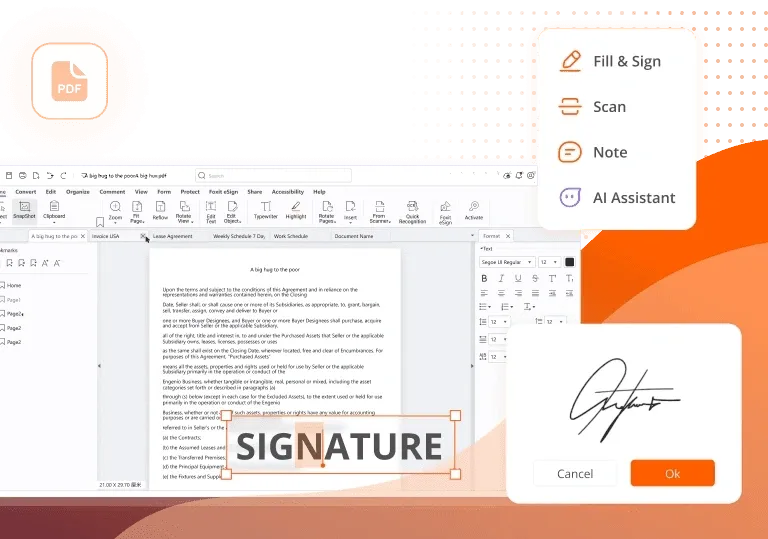
Image Source: Foxit
Foxit PDF Editor ranks #1 on G2 for customer satisfaction [5]. The software provides a complete alternative to Adobe’s solutions and costs up to 44% less. This Windows and Mac-compatible software has a user-friendly Office-style ribbon interface that simplifies document management tasks.
Key Features
Foxit PDF Editor has powerful editing capabilities with its word processor-like text editing system. Users can reflow text between paragraphs and pages, change text size and formatting, and add multimedia elements to documents [1]. The software converts documents to Word, PowerPoint, Excel, RTF, HTML, text, and image formats [1].
Foxit’s AI Assistant stands out with document summarization, writing improvements, definition help, and translation into more than 30 languages [1]. The AI chat feature gives detailed answers about documents to help users make better decisions [1].
Security features protect sensitive information through permanent redaction, password encryption, document sanitization, and digital signatures [1]. The software merges with popular content management systems and cloud storage services while making shared reviews possible [1].
Pros and Cons
Pros:
-
User-friendly interface with familiar Microsoft Office-like navigation [5]
-
Strong security features with encryption and password protection [6]
-
Cross-platform compatibility (Windows, macOS, Linux, web, mobile) [6]
-
Smooth PDF reading experience with rich annotation tools [6]
-
More affordable than Adobe Acrobat [5]
Cons:
-
Large, complex files can slow down performance [6]
-
Advanced features take time to master [6]
-
No ePub conversion capability [6]
-
Multilingual support needs improvement [6]
-
Mobile app performance issues [2]
Pricing
Foxit’s pricing comes in two editions:
-
PDF Editor: $10.99 monthly or $129.99 annually – Has desktop and web versions, 20GB cloud storage, and 20 free AI Assistant credits monthly [7][2]
-
PDF Editor+: $13.99 monthly or $159.99 annually – Adds mobile access, eSign capabilities (150 envelopes annually), Smart Redact feature, and 150GB cloud storage [7][2]
Both plans come with a 7-day free trial that includes all tools and cloud features [5]. Business volume licensing offers team options at $129.00/year (standard) and $159.00/year (pro) [6].
Best For
Business professionals who work with PDF documents regularly will find Foxit PDF Editor valuable [5]. The software works well with Microsoft Teams, SharePoint, and OneDrive, especially when your organization uses Microsoft’s ecosystem [7]. Teams that need collaborative PDF workflows with cloud access will find this software an excellent choice.
Budget-conscious users looking for a feature-rich Adobe alternative will appreciate Foxit without losing essential PDF management capabilities. Many organizations have switched from Adobe Acrobat to Foxit and saved money [2].
Wondershare PDFelement
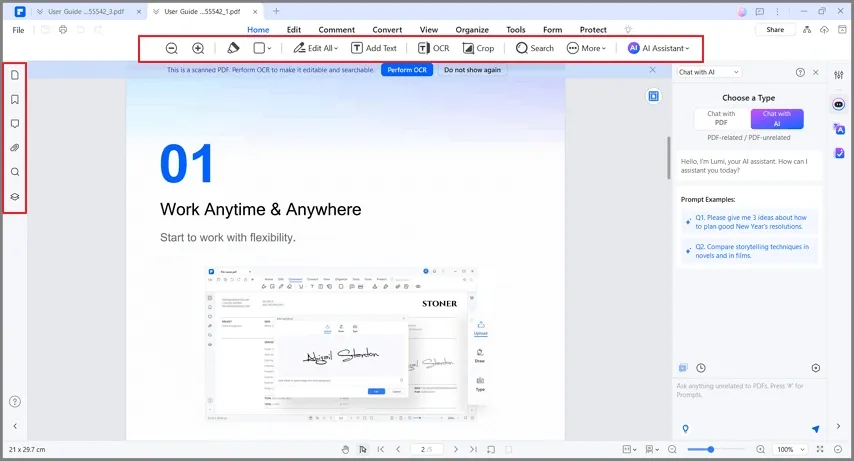
Image Source: Wondershare PDFelement
PDFelement stands out as a powerful yet affordable alternative to premium PDF editors. This cross-platform editor strikes the perfect balance between features and ease of use. The software earned recognition as a G2 Spring 2025 Grid Leader and made it to G2 Best Software Awards 2024 Top 50 Office Product list.
Key Features
PDFelement delivers detailed PDF management capabilities with its user-friendly text editing system that adapts to existing document formats automatically. You can edit text, images, links, and watermarks without much effort. The software excels at document conversion and supports over 300 file types while preserving original layouts.
The software goes beyond simple editing with reliable OCR technology that turns scanned documents into searchable, editable files. It has annotation tools to highlight, comment, and draw. You can create and manage forms too. Security options cover password protection, permissions settings, and watermarking.
PDFelement’s AI-powered features help summarize, analyze, and edit documents. However, these need extra purchases once usage limits are reached. Organizations can process multiple documents at once for conversion, encryption, and compression using batch processing.
Pros and Cons
Pros:
-
User-friendly interface similar to Microsoft Office
-
Works on all platforms (Windows, Mac, iOS, Android, web)
-
Superior OCR engine compared to competitors
-
Substantially cheaper than Adobe Acrobat
-
One-time purchase option exists
Cons:
-
Performance slows down with complex documents
-
AI features need extra subscription after initial quota
-
Users report persistent upgrade notifications
-
Not as feature-rich as Adobe Acrobat for advanced work
-
Mobile apps offer fewer features than desktop versions
Pricing
PDFelement’s pricing options for individual users include:
-
Yearly Plan: $129.00 (reduced from $305.00)
-
2-Year Plan: $149.00 (reduced from $510.00)
-
Perpetual Plan: $159.00 (one-time payment)
Every plan comes with full features, no watermarks, free technical support, and 20GB cloud storage. Team licenses cost $139.00 for the perpetual plan. Students and faculty get 50% off with educational discounts. A 7-day free trial lets you test the software with some limitations like watermarked outputs.
Best For
PDFelement works great for businesses, students, and professionals who need PDF tools but want something more affordable than Adobe Acrobat. Users who prefer simple interfaces over complex features will find it appealing. Organizations can handle large document volumes efficiently with batch processing. The one-time purchase option attracts users who don’t want subscriptions. The software offers the right mix of features and affordability for users with basic to moderate PDF needs.
Nitro PDF Pro

Image Source: Nitro PDF
Nitro PDF Pro stands out as a leading alternative to Adobe Acrobat with its resilient infrastructure for document management on Windows, Mac, and iOS devices. The newest version (14.39.0.18, released June 2025) makes documents with heavy images perform better and sets 256-bit AES encryption as the default security standard.
Key Features
Nitro PDF Pro provides detailed PDF editing tools through a Microsoft Office-style ribbon interface that new users can quickly learn. The software excels at converting documents between PDF and other formats like Word, PowerPoint, and Excel. Its OCR technology turns scanned documents into searchable, editable content with good accuracy.
The software’s AI-powered Knowledge Assistant stands out by answering questions about features and usage instantly in over 80 languages. Users can detect and extract data from tables and forms automatically. Organizations focused on accessibility will find tools to create documents that meet WCAG 2.1 and PDF/UA standards, making content available to people with disabilities.
Pros and Cons
Pros:
-
User-friendly interface similar to Microsoft Office that speeds up adoption
-
Works seamlessly on Windows, Mac, and iOS
-
Better priced than Adobe Acrobat
-
Solid security features with 256-bit AES encryption
-
AI assistance that summarizes documents and extracts information
Cons:
-
Slows down with large, complex documents
-
Users report occasional crashes
-
OCR features don’t deal very well with complex layouts
-
Fewer cloud-based features than subscription-focused competitors
-
Windows version has more features than Mac and iOS versions
Pricing
Nitro’s flexible pricing fits different needs:
-
Nitro PDF Standard: €17.08 per user/month (€204.96 annually) – Has full PDF editing suite and cloud features
-
Nitro PDF Plus: Enterprise subscription with volume discounts (contact sales required)
-
Nitro PDF Classic: €305 one-time payment for a three-year license – Windows-only perpetual option
Each option comes with a 14-day free trial without credit card details needed upfront.
Best For
Businesses moving away from Adobe Acrobat will find Nitro PDF Pro an economical solution that maintains core functionality. Windows-based organizations benefit most from its detailed feature set on that platform. Small teams value the simple pricing structure. Large enterprises can utilize Nitro’s analytics to measure ROI by tracking document workflows and printing activity. Users who want perpetual licenses instead of subscriptions will appreciate Nitro’s Classic option as an alternative to monthly payments.
PDF-XChange Editor
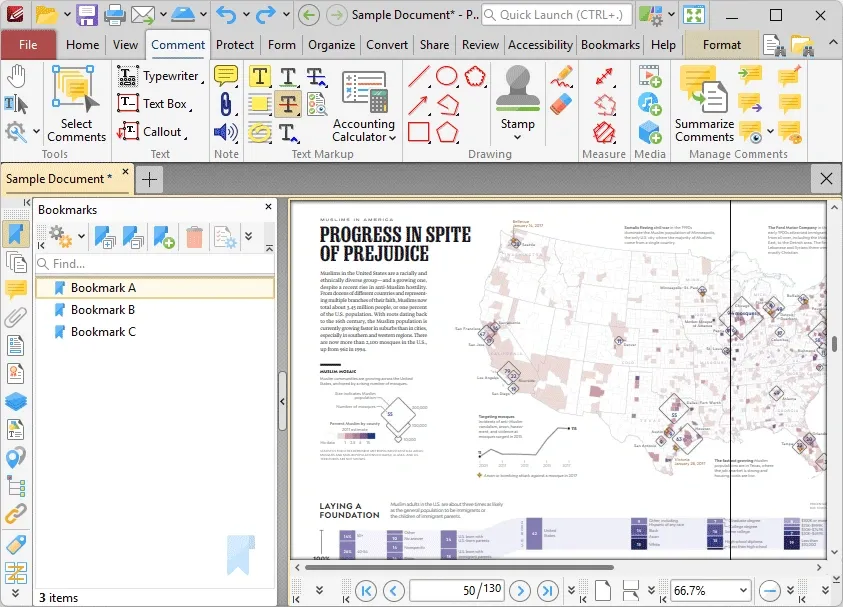
Image Source: PDF-XChange
PDF-XChange Editor from Tracker Software delivers powerful PDF capabilities at budget-friendly prices. This Windows-based editor comes with over 300 features for complete document management [8].
Key Features
The software has a clean ribbon interface with function-specific tabs that show relevant tools on selection. A handy left sidebar shows thumbnails, attachments, and comments so you can navigate documents easily [4]. The editor shines in annotation features and has callouts, sticky notes, drawing tools, highlighters, stamps, and 3D annotations among other audio and video comments [4].
Security features are available under the Protect tab. Users can add password encryption, set editing permissions, redact text, and sanitize documents to remove hidden elements like metadata [4]. The editor also has OCR technology that converts scanned documents into searchable, editable text [9].
Pros and Cons
Pros:
-
Complete set of annotation and editing tools
-
Strong security features with redaction options
-
One-time license payment instead of subscriptions [10]
-
Great value compared to premium options
-
Free version with watermarks [9]
Cons:
-
Twelve toolbar tabs can be overwhelming [4]
-
Free version adds watermarks to edited files
-
Takes more time to learn than competitors
-
Works mainly on Windows with limited cross-platform support
-
Higher-tier packages needed for some advanced features
Pricing
PDF-XChange Editor has straightforward pricing starting at $62.00 for single users [3]. Multi-user packs range from 3 users ($168.00) to 1000+ users [3]. Each license is permanent and updates are optional through maintenance plans [11].
The PDF-XChange Pro bundle costs $121.00 and combines PDF-XChange Standard, PDF-Tools, and PDF-XChange Editor Plus [4]. Home users and students can get PDF-XChange Lite at no cost [12].
Best For
Budget-conscious professionals and organizations will find PDF-XChange Editor perfect for their PDF needs without Adobe’s high prices. The software works best for users who prefer buying software outright instead of paying subscriptions. Its annotation tools and security features make it a great fit for schools, small businesses, and professionals who work with PDFs often but want to keep costs low.
PDFgear

Image Source: PDFgear
PDFgear is a new player in the PDF editing space that offers rich features without any cost. Users can access this platform on Windows, Mac, iOS, and web browsers. More people now choose it as their free alternative to premium editors.
Key Features
PDFgear’s standout feature is its built-in AI Copilot which runs on ChatGPT. It helps you summarize documents, extract key information, and translate content in seconds [13]. The software lets you edit text just like Microsoft Word and keeps the original formatting intact [1]. Teams can work together using annotation tools to highlight text, add sticky notes, and create free drawings [13].
The software goes beyond simple editing with options to convert PDFs to Word, JPG, and other formats [13]. Users can customize their viewing experience with dark mode to reduce eye strain and change background colors for better reading [13]. The software has bookmarks and page thumbnails that make it easy to handle long documents [13].
Pros and Cons
Pros:
-
No cost, no watermarks or account needed [14]
-
Works on Windows, Mac, iOS, and web [14]
-
Accessible interface [15]
-
AI features at no extra cost [16]
-
No limits on file size or usage [1]
Cons:
-
Web version doesn’t have text editing [14]
-
Mobile app needs camera access which raises privacy questions [14]
-
Pages sometimes don’t scroll smoothly [7]
-
Desktop version works better than other platforms [14]
-
Paid features might come later [2]
Pricing
Right now, PDFgear is free without any hidden costs or limits [2]. The team might charge for advanced features like AI tools in the future, but they haven’t set a date [2]. The company has secured funding to cover their costs, which lets them keep the free model running [2].
Best For
Students and professionals who want a free alternative to paid PDF editors will find PDFgear useful. The software works well for personal and business users who need simple to medium-level PDF management [7]. Users who often need to pull information from or summarize long documents will benefit from its AI features [16].
PDF Expert
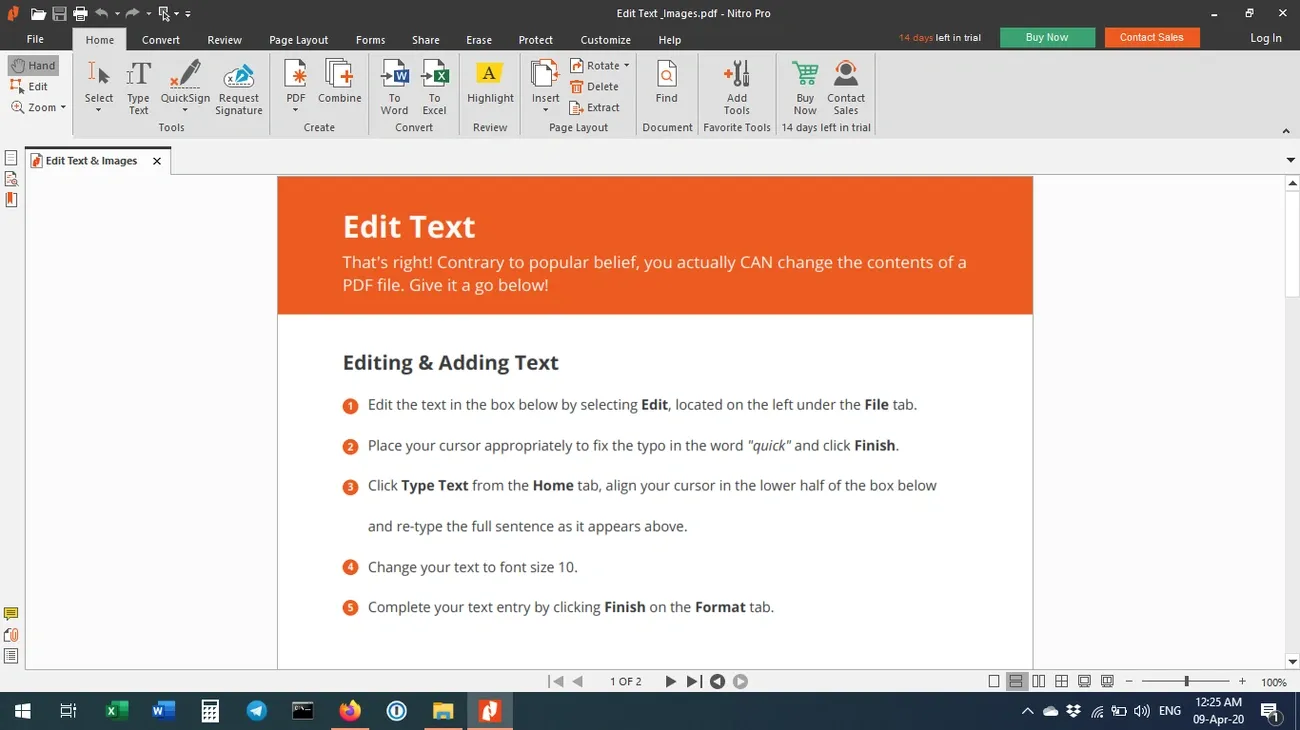
Image Source: PDF Expert
PDF Expert, created specifically for Apple devices, delivers a refined PDF editing experience that serves over 30 million users worldwide [17]. This software from Readdle has earned Apple’s recognition as an App of the Year Runner-up and Editors’ Choice [6].
Key Features
PDF Expert delivers detailed text editing capabilities that match your document’s existing format automatically. Users can easily modify text, update images, and add links right within their PDFs [6]. The software shines with its annotation tools, which let you highlight content, add comments, and use customizable stamps [6].
The organization tools help users merge files, rearrange pages, and split documents effortlessly [6]. On top of that, it converts PDFs to and from various formats like Word, Excel, PowerPoint, and images [6]. The software uses Apple’s Vision framework with built-in OCR technology to turn scanned documents into searchable, editable text [18].
Reading becomes comfortable with multiple viewing options. Users can choose between Day, Night, and Sepia themes among other viewing options like two-page and split views [6].
Pros and Cons
Pros:
-
User-friendly, clean interface that’s easy to learn
-
Exceptional handling of large documents
-
Continuous connection between Mac, iPhone, and iPad
-
Resilient annotation and editing toolkit
-
OCR processing runs faster than competitors [18]
Cons:
-
Apple devices only – no Windows or Android version [19]
-
Mac-only lifetime license excludes mobile access [20]
-
Lifetime license holders might need to pay for future updates [20]
-
Premium features require subscription
-
Costs more than similar tools
Pricing
PDF Expert comes with two main payment options:
-
Yearly Plan: $79.99 annually ($6.67/month for first year), includes Mac, iPhone and iPad versions [20]
-
Lifetime License: $139.99 one-time payment, Mac version only [20]
Students and educators get a 50% discount, which brings the yearly subscription to $39.99 and the lifetime license to $69.99 [18].
Best For
Apple ecosystem users will find PDF Expert a perfect fit as their native PDF solution. The software works great for professionals and students who keep taking notes on documents and need their work to sync between desktop and mobile devices. Users working with large technical documentation or research papers will appreciate its smooth handling of big files.
Smallpdf

Image Source: Smallpdf.com
Smallpdf, a Swiss-built cloud-based PDF solution, has earned the trust of 1.7 billion people since 2013 [5]. The platform stands out with its simple design and offers both online access and desktop applications for Windows and macOS. Users can manage documents easily, whatever device they prefer.
Key Features
The platform provides more than 30 document management tools [5] through a user-friendly interface. Users can compress PDFs with simple and strong options, convert files between PDF and various formats (Word, Excel, PowerPoint, JPG), and organize documents by merging, splitting, and rotating pages. The PDF editor lets users modify text, add annotations, and number pages.
Smallpdf has added AI-powered tools for document analysis, summarization, and translation in 24 languages [21]. The platform’s security features include 128-bit AES encryption with ISO/IEC 27001 certification and compliance with global privacy regulations like GDPR, CCPA, and nFADP [21]. The platform’s integration with Sign.com enables users to track and manage electronic signatures.
Pros and Cons
Pros:
-
Color-coded systems create a clean, visual approach to document tracking [21]
-
Platform works across web, desktop, mobile app, and browser extensions
-
Transparent data protection backed by strong security certifications
-
Users can process multiple files at once with batch capabilities
-
Cloud integration supports 4 million Google Workspace installations [21]
Cons:
-
Free version allows only 2 document conversions per day [22]
-
File size caps at 50MB for AI tools with plan-specific word limits [5]
-
Premium alternatives offer more editing features
-
Some users report slow customer service response times [23]
-
Full access requires a subscription
Pricing
Smallpdf’s pricing comes in tiers:
-
Free: Basic access with limited downloads and features
-
Pro: $12/month (billed annually) with unlimited access to all tools [5]
-
Team: Discounted rates for 2-19 users with centralized billing
-
Business: Custom pricing for 20+ users with dedicated support [5]
Best For
Small-to-medium businesses and administrative teams who need simple document handling will find Smallpdf most useful [21]. The platform works best for organizations that need frequent PDF conversions, compression, and basic editing in a secure environment.
UPDF

Image Source: UPDF
UPDF stands out as an AI-powered PDF solution that works seamlessly on Windows, Mac, iOS, and Android. The editor’s modern interface and AI capabilities make it unique in the market.
Key Features
UPDF blends traditional editing tools with AI-powered features. You can edit text, images, and links while the original formatting stays intact. The software can convert more than 300 file types and has OCR technology with three layout options for scanned documents. The AI assistant helps you summarize, translate, and explain PDFs. It can even turn text-heavy documents into visual mind maps. You can extract, rotate, reorder, and modify pages quickly with its page management tools.
Pros and Cons
Pros:
-
One license works across all your devices
-
Accessible interface with multiple themes (mint, dark, light)
-
Complete annotation toolkit with stickers and callouts
-
Strong security features with password protection
Cons:
-
Free version puts watermarks on documents
-
Free version limits you to 2 conversions per day
-
AI features only analyze 3 files and 30 questions without subscription
-
Some advanced features work only on specific platforms
Pricing
UPDF’s pricing includes a free version, Pro license at $39.99/year, and a lifetime option for $69.99. The AI Assistant needs a separate subscription. Enterprise plans come with extra features and 20GB cloud storage.
Best For
UPDF works great for anyone who needs to manage PDFs across multiple devices. Students and researchers find its AI capabilities valuable when they need to analyze documents extensively.
EaseUS PDF Editor

Image Source: pdf.easeus.com
EaseUS PDF Editor works as a complete Windows-only PDF toolkit. You can edit, convert, create, and view files through its optimized interface.
Key Features
EaseUS PDF Editor lets you modify text, images, graphics, and links while keeping the original formatting [24]. The software has powerful OCR technology that turns scanned documents into editable text [24]. You can build questionnaires with text fields, checkboxes, and combo boxes using its form creation tools [24]. The batch processing features are impressive and let you convert, merge, split, process OCR, compress, and add watermarks to multiple files [24]. Recent versions use AI technology to optimize PDF workflows and improve OCR quality [24].
Pros and Cons
Pros:
-
Accessible interface with minimal learning curve
-
Complete editing toolkit for text, images, and forms
-
Resilient infrastructure with password protection options
-
Extensive batch processing capabilities
-
Multiple viewing modes including Read and Focus
Cons:
-
Windows-only platform with no mobile version
-
Trial version limited to 5-page conversions with watermarks
-
Higher-priced monthly subscription compared to annual plans
-
Occasional performance issues with larger files
Pricing
EaseUS offers three subscription tiers:
-
Monthly: $19.95 (reduced from $29.95) [25]
-
Annual: $49.95 [25]
-
Lifetime: $79.95 (one-time payment) [25]
Best For
Windows users who need complete PDF management without excessive complexity will find this software useful [26]. The software works best if you have batch processing needs and handle multiple documents at once.
PDF Candy
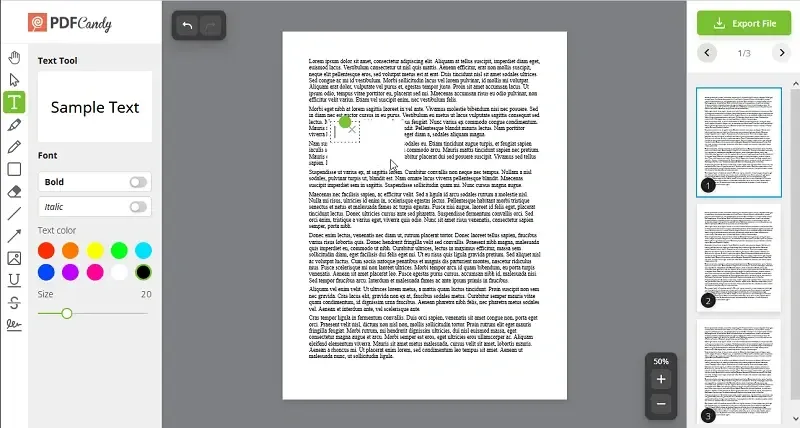
Image Source: PDF Candy
PDF Candy blends ease of use with powerful features through its suite of 46 PDF tools available on web and desktop platforms. Since its launch in 2016, users have processed more than 7.3 billion files [27].
Key Features
The platform provides detailed editing tools for text, images, and metadata. Users can convert PDFs to and from 20+ formats, including Word, JPG, and EPUB. The software stands out with its OCR capability that recognizes text in scanned documents. You can process multiple files without size limits [27]. The desktop version works without an internet connection, which sets it apart from other online tools [27].
Pros and Cons
Pros:
-
Extensive toolset with 46+ PDF utilities
-
No file size limitations for processing tasks
-
Offline functionality through desktop application
-
Batch processing for multiple files
Cons:
-
Free version restricts users to one task per hour [28]
-
Desktop version offers fewer features than web version [29]
-
Occasional malfunctions when editing or deleting files [30]
-
Limited image and link editing capabilities [29]
Pricing
PDF Candy’s subscription options include:
-
Web Monthly: $6.00/month [31]
-
Desktop + Web Yearly: $4.00/month ($48.00 annually) [27]
-
Desktop + Web Lifetime: $99.00 one-time payment [27]
Paid plans remove hourly limits and allow files up to 500MB per task [27].
Best For
Budget-conscious users will find PDF Candy a great fit for their PDF management needs without complex software installation. The software’s batch processing features help professionals who work with multiple documents regularly [32].
Comparison Table
|
PDF Editor |
Platform Compatibility |
Key Features |
Pricing (Annual) |
Notable Pros |
Notable Cons |
Best For |
|
Adobe Acrobat Pro |
Windows, macOS, iOS, Android, Web |
Advanced OCR, e-signatures, document security, Microsoft 365 integration |
$239.88 |
Complete editing capabilities, strong security features |
High price point, steep learning curve |
Legal firms, educational institutions, corporate environments |
|
Foxit PDF Editor |
Windows, macOS, Linux, Web, Mobile |
AI Assistant, document conversion, shared reviews, cloud integration |
$129.99 |
User-friendly Office-like interface, strong security |
Performance issues with large files, steep learning curve |
Business professionals, Microsoft ecosystem users |
|
Wondershare PDFelement |
Windows, Mac, iOS, Android, Web |
OCR technology, batch processing, AI features, 300+ file type support |
$129.00 |
User-friendly interface, cross-platform availability |
Slow performance with complex documents, AI features require additional cost |
Businesses and professionals seeking affordable Adobe alternative |
|
Nitro PDF Pro |
Windows, Mac, iOS |
AI Knowledge Assistant, WCAG 2.1 compliance, table data extraction |
$204.96 |
Office-like interface, strong security |
Performance issues with large files, limited cloud features |
Businesses transitioning from Adobe Acrobat |
|
PDF-XChange Editor |
Windows |
300+ features, 3D annotations, document sanitization |
$62.00 |
Complete annotation tools, perpetual licensing |
Complex interface, limited cross-platform support |
Budget-conscious professionals, educational institutions |
|
PDFgear |
Windows, Mac, iOS, Web |
AI Copilot, text editing, document conversion |
Free |
No watermarks or restrictions, integrated AI |
Limited web version features, potential future paid features |
Students and professionals needing simple PDF management |
|
PDF Expert |
Mac, iOS |
OCR technology, multiple viewing modes, annotation tools |
$79.99 |
Fast performance, continuous Apple integration |
No Windows version, some features subscription-only |
Dedicated Apple ecosystem users |
|
Smallpdf |
Web, Windows, Mac, Mobile |
30+ document tools, AI-powered analysis, cloud integration |
$144.00 |
Clean interface, strong security certifications |
Limited free version, restricted AI tool file size |
Small-to-medium businesses, administrative teams |
|
UPDF |
Windows, Mac, iOS, Android |
AI assistant, 300+ file conversions, OCR technology |
$39.99 |
Cross-platform functionality, complete toolkit |
Watermarked free version, limited AI features |
Multi-device users, students, researchers |
|
EaseUS PDF Editor |
Windows |
OCR technology, batch processing, form creation |
$49.95 |
User-friendly interface, extensive batch processing |
Windows-only, performance issues with large files |
Windows users needing batch processing |
|
PDF Candy |
Web, Windows |
46+ PDF tools, offline functionality, batch processing |
$48.00 |
No file size limits, extensive toolset |
Restricted free version, limited editing features |
Budget-conscious users needing diverse PDF tools |
Conclusion
Your choice of PDF editor ends up depending on your needs, budget limits, and workflow needs. The detailed analysis of these 11 tools shows Windows users have plenty of options in 2025.
Adobe Acrobat Pro stands as the gold standard with its detailed toolkit and smooth integration features. Its price tag might put off many users though. Foxit PDF Editor and Wondershare PDFelement give you solid features at more available price points without losing core functions.
PDF-XChange Editor or PDFgear might appeal to budget-minded users. These tools pack impressive features at minimal or no cost. Teams need tools that work on different devices, and that’s where UPDF and Smallpdf are a great way to get results.
The comparison table helps you quickly narrow down choices based on platform fit, core features, pricing, and best uses. Most of these apps let you try them free first. You can test their user-friendly design and features before spending money.
Security features need careful thought when picking a PDF editor, especially when you have sensitive business data. Nitro PDF Pro and Foxit lead the pack with strong encryption and redaction tools.
On top of that, AI-powered features have revolutionized PDF management across several platforms. These smart assistants help you summarize documents, pull key details, and translate content. This has boosted productivity for regular PDF users substantially.
The speed and power of your editor matter, especially when you work with large or complex documents. All but one of these editors handle simple tasks well. PDF Expert and Adobe Acrobat Pro shine with heavy-duty operations.
The digital world of PDF editors keeps changing faster, as developers add new features and improve existing ones. Keep in mind that today’s right choice might change as your needs grow or these apps develop new abilities.
Key Takeaways
After testing 30+ PDF editors, here are the essential insights to guide your Windows PDF editor selection in 2025:
• Adobe Acrobat Pro remains the industry standard but costs $239.88 annually – consider alternatives like Foxit ($129.99) or PDFelement ($129) for 40-50% savings with similar functionality.
• Free options like PDFgear offer surprising value with AI-powered features and no watermarks, making them ideal for students and light users who don’t want subscription commitments.
• Cross-platform compatibility matters more than ever – tools like UPDF ($39.99) and Smallpdf work seamlessly across Windows, Mac, iOS, and Android for modern hybrid workflows.
• AI integration is transforming PDF management with features like document summarization, translation, and content extraction becoming standard across multiple editors, not just premium ones.
• Security features vary significantly between tools – businesses handling sensitive documents should prioritize editors with 256-bit AES encryption, redaction capabilities, and compliance certifications like those found in Nitro PDF Pro and Foxit.
The PDF editor market offers solutions for every budget and use case, from completely free options to enterprise-grade tools. Most importantly, take advantage of free trials to test interface usability and performance with your specific document types before making a final decision.
FAQs
Q1. What are some free PDF editing options for Windows users in 2025? While many PDF editors require paid subscriptions, there are free options available like PDFgear that offer basic editing capabilities without watermarks or restrictions. These free tools can be suitable for students or casual users who don’t need advanced features.
Q2. How do AI-powered features enhance PDF editing? AI integration in PDF editors like UPDF and Foxit PDF Editor enables features such as document summarization, content extraction, and translation across multiple languages. This can significantly boost productivity when working with lengthy or complex PDF documents.
Q3. Which PDF editor is best for cross-platform compatibility? For users working across multiple devices, editors like UPDF and Smallpdf offer seamless functionality across Windows, Mac, iOS, and Android platforms. This ensures consistent PDF management capabilities regardless of the device being used.
Q4. Are there affordable alternatives to Adobe Acrobat Pro? Yes, several PDF editors offer similar functionality to Adobe Acrobat Pro at lower price points. Options like Foxit PDF Editor and Wondershare PDFelement provide robust feature sets at 40-50% lower annual costs compared to Adobe’s offering.
Q5. What security features should I look for in a PDF editor? When selecting a PDF editor, especially for business use, prioritize tools offering strong encryption (like 256-bit AES), redaction capabilities, and compliance with data protection regulations. Editors such as Nitro PDF Pro and Foxit PDF Editor excel in these security aspects.
References
[1] – https://www.pdfgear.com/pdfgear-for-windows/
[2] – https://www.pdfgear.com/insights/is-pdfgear-free.htm
[3] – https://www.pdf-xchange.com/product/pdf-xchange-editor/pricing
[4] – https://www.pcworld.com/article/2171515/pdf-xchange-editor-review.html
[5] – https://smallpdf.com/pricing
[6] – https://pdfexpert.com/features
[7] – https://www.swifdoo.com/edit-pdfs/pdfgear-review
[8] – https://www.pdf-xchange.com/product/pdf-xchange-editor/features-group/33/features
[9] – https://www.techradar.com/reviews/pdf-xchange-editor
[10] – https://www.pdf-xchange.com/
[11] – https://www.pdf-xchange.com/pricing
[12] – https://www.pdf-xchange.com/free-lite-home.html
[13] – https://www.pdfgear.com/pdf-reader/
[14] – https://www.techradar.com/pro/software-services/pdfgear-review
[15] – https://www.xda-developers.com/reasons-switch-from-acrobat-to-pdfgear/
[16] – https://www.pcworld.com/article/2105560/pdfgear-pdf-editor-review.html
[17] – https://support.readdle.com/pdfexpert/en_US/annotate-pdfs/getting-started-with-pdf-expert
[18] – https://pdfexpert.com/blog/pdf-expert3
[19] – https://pdfexpert.com/blog/best-pdf-editor-mac-windows-online-web
[20] – https://pdfexpert.com/pricing
[21] – https://smallpdf.com/compare/adobe-vs-foxit-vs-smallpdf
[22] – https://www.pcworld.com/article/633154/smallpdf-pdf-editor-review.html
[23] – https://www.softwareadvice.com/cms/smallpdf-profile/
[24] – https://www.easeus-software.com/pdf-editor/
[25] – https://pdf.easeus.com/buy/pdf-editor.html
[26] – https://www.pcworld.com/article/2061076/easeus-pdf-editor-review.html
[27] – https://pdfcandy.com/download.html
[28] – https://www.techradar.com/reviews/pdf-candy
[29] – https://updf.com/edit-pdf/pdfcandy/?srsltid=AfmBOoopf_-90hjc94AlhV5rcZI3ml0We0ppbqayjzWqZ640_KzfT_vj
[30] – https://www.spotsaas.com/product/pdf-candy/reviews?&page=3
[31] – https://pdfcandy.com/
[32] – https://top10pcsoftware.com/pdf-candy-review/