

TurboWarp is designed to run Scratch projects much faster by using its own compiler and unique features. It allows users to create games, stories, and animations with improved speed, new extensions, and more customization options compared to standard Scratch. The platform offers extras like dark mode that help make coding easier for both new learners and experienced users.

Anyone interested in turning their Scratch projects into downloadable programs will find the Packager tool useful, as it lets projects be converted into files for Windows, macOS, and Linux. This platform is also available as an app, so users can work offline and use special add-ons or features like dark mode on their computer. For those looking for more customization, TurboWarp also supports extra extensions and tools that are not found in regular Scratch.
Key Takeaways
- TurboWarp makes Scratch projects run faster and smoother.
- It offers more features, customization, and offline options.
- Tools like the Packager let users easily share and export their projects.
What Is TurboWarp?

TurboWarp is an open source Scratch mod designed for faster performance, added features, and a more flexible user experience. It was created to help users run Scratch projects more smoothly while offering new options that the original Scratch platform does not provide.
Overview and Main Purpose
TurboWarp is a modified version of Scratch made to run projects much faster, thanks to its built-in compiler. This speed boost is important for larger or more complex games and animations, which can lag on the regular version of Scratch.
Users get extra features like dark mode for easier viewing, special addons to customize the editor, and the ability to pack projects as standalone apps. TurboWarp works both online through a browser and offline with TurboWarp Desktop, giving users more ways to create and share their work.
Educators and students often use TurboWarp for building interactive stories, games, and projects because it saves time and helps avoid some common slowdowns found on Scratch. More people choose TurboWarp when they want improved performance and extra tools without giving up the familiar look and feel of Scratch.
Development History and Background
TurboWarp began as a project by a developer known as garbomuffin, who wanted to address speed and feature limitations in Scratch. Development started by adding a JavaScript compiler to the Scratch engine, leading to big improvements in how quickly projects load and run.
Over time, new features were introduced based on user feedback, making TurboWarp useful for both beginners and advanced users. It now supports a range of add-ons and customizations that are not available in the standard Scratch editor.
A timeline of key developments:
| Year | Major Events |
|---|---|
| 2020 | Initial release |
| 2021 | Desktop app launched |
| 2022 | More addons and options |
Today, TurboWarp is widely used by schools, hobbyists, and anyone who wants a better Scratch experience.
Open Source Nature
TurboWarp is fully open source, which means anyone can look at, change, or help improve its code. This lets the community add features, fix bugs, and suggest new ideas.
The project is available on popular code-hosting sites, making it easy for people to join the development. Open source licensing allows TurboWarp to grow based on what users need, rather than being limited by a small team or company.
These open development practices have helped TurboWarp keep up with technology changes and user requests. People who know how to program often suggest or create their own add-ons and improvements, further expanding what TurboWarp can do compared to traditional Scratch mods.
How TurboWarp Works
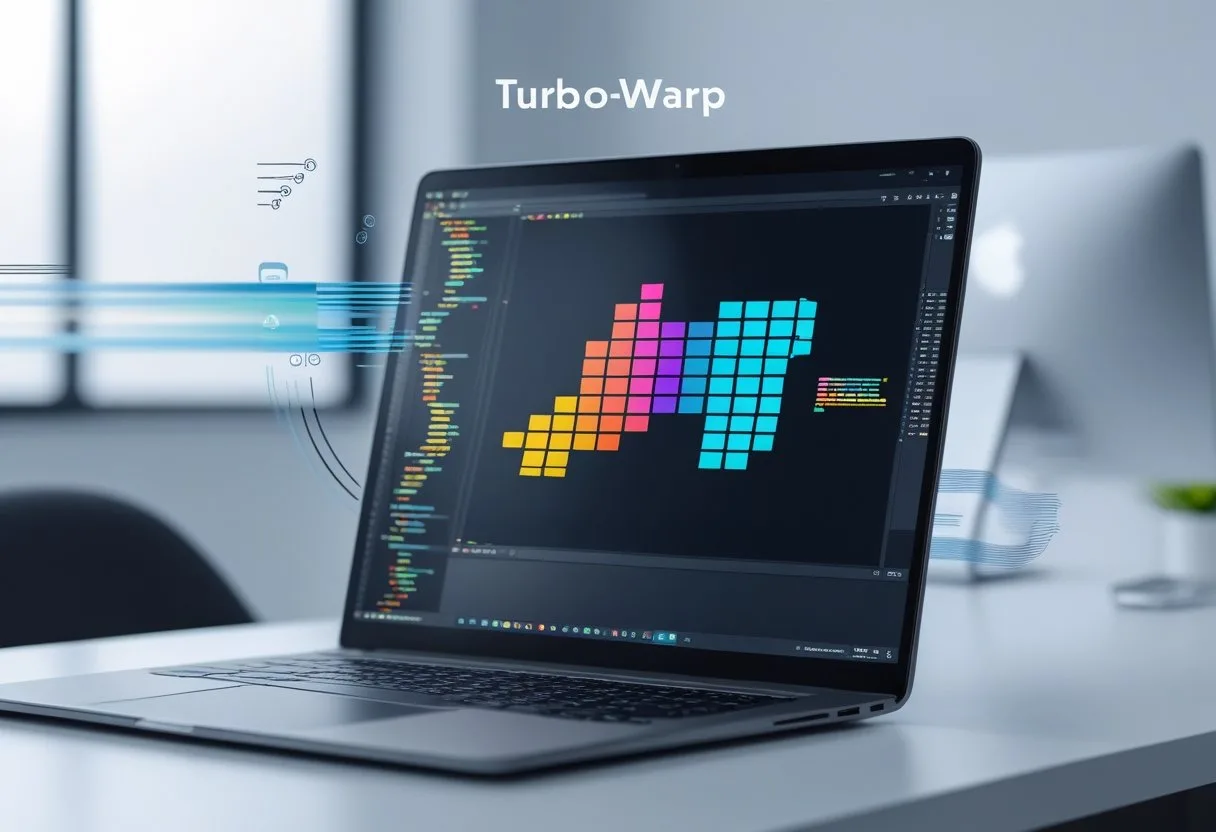
TurboWarp runs Scratch projects in a fundamentally different way than the default Scratch editor. It uses special technology to compile projects, which allows for faster execution and some new features.
Compiler and Project Compilation
TurboWarp uses a compiler instead of an interpreter like Scratch. When a project is loaded, TurboWarp converts the blocks into fast JavaScript code. This step is called project compilation.
Scratch, in contrast, reads and runs each block one at a time, which can slow things down. By compiling everything at once, TurboWarp reduces the amount of work the computer must do while the project runs.
The compilation process does have a trade-off. Live editing of scripts is less practical because the project must be recompiled for changes to take effect. This helps keep the program running at top speed but may seem less flexible to those who like to tweak their projects constantly.
For those interested in technical details, TurboWarp’s compiler is designed to match how Scratch blocks work, so projects behave the same even though they run differently. This design ensures compatibility and smooth transitions for users moving from Scratch to TurboWarp. Information on the compiler and the compilation process can be found in the official TurboWarp documentation.
Improved Performance
The main benefit of TurboWarp is improved performance. Compiled projects typically run 10 to 100 times faster than in the regular Scratch editor.
This speed boost is most noticeable in projects with lots of sprites, heavy graphics, or complex scripts. Animations, games, and simulations run more smoothly, and even demanding projects perform reliably.
By reducing CPU usage, TurboWarp also extends the battery life of laptops and makes it possible to run large projects on older or slower computers. The result is a more responsive experience that encourages creativity without technical slowdowns.
To improve accessibility, TurboWarp also offers features like dark mode and high contrast options, which make it more comfortable for users with different visual preferences. More details about these features and performance improvements are highlighted on the TurboWarp website.
Differences from Scratch
TurboWarp is still based on Scratch 3, but with key differences to enhance usability and speed. While Scratch uses live editing for immediate feedback, TurboWarp’s compiled projects require a restart when changes are made.
Key differences include:
- Use of a compiler instead of an interpreter
- Faster run times for most projects
- Extra settings like dark mode and add-ons for better customization
- Offline use with TurboWarp Desktop for people who prefer working without internet access
- Extra support for Linux and accessibility needs
TurboWarp also features a batch of add-ons and optional tools not found in Scratch. These changes make projects easier to manage and debug but may require users to learn new workflows if they’re used to the Scratch editor. Users can find a detailed guide about TurboWarp’s differences and features online.
Key Features of TurboWarp
TurboWarp brings performance improvements, extra customization, and new tools that make working with Scratch projects easier. It offers a rich set of options made for users who want speed, flexibility, and a better experience when coding or editing games and animations.
Extension Gallery and Addons
TurboWarp has a built-in Extension Gallery, which lets users quickly add new features to their projects. These extensions can include extra coding blocks, math tools, external device support, and more. The gallery is large and always growing, giving users more choices than the standard Scratch editor.
Addons are another unique aspect. They can be turned on to improve the editor, such as by adding shortcuts, changing the layout, or providing tools for easier navigation. Some addons can also speed up how projects run or display extra debugging info for testing.
Using extensions and addons, creators can build more complicated or unique projects without much effort. They do not need to install other software or edit their code by hand. This makes TurboWarp more flexible than most block-based editors.
For more details, explore the TurboWarp Extension Gallery and list of addons available.
Dark Mode and Interface Options
TurboWarp gives users several ways to customize the look and feel of the editor. Dark mode is popular, making long coding sessions easier on the eyes and reducing glare, especially in low-light environments.
Users can switch between dark mode and light mode with just a single click. The interface options also include adjustable font sizes, interface scaling, and layout tweaks, so everyone can find a setup that works for them.
Customization doesn’t stop at appearance. Developers can enable or disable certain on-screen controls or rearrange panels. This speeds up their workflow and makes it simpler to focus on specific tasks.
TurboWarp is often praised for its ease of use and clean interface, especially when compared to the standard editor available on Scratch.
Project Link Integration
Sharing projects on TurboWarp is simple and direct. Users can generate a project link that points straight to their running project. This is useful for sharing with teachers, friends, or collaborators, allowing anyone to see or test the work without creating an account.
These links work quickly and load the project in TurboWarp’s optimized environment. This can result in faster load times and better performance compared to other platforms.
Developers can copy a link and post it on websites, messaging apps, or even embed it in blogs. The seamless link system helps teachers, event hosts, or groups organize project showcases and gather feedback.
More information is available about project sharing through TurboWarp’s documentation.
View Studio
TurboWarp offers a View Studio feature that makes it easier to see and manage collections of projects. Studios are like folders or galleries where users can group related projects, such as for a class assignment or a collaborative event.
View Studio allows users to preview, sort, and browse multiple projects at once. The display is clean and organized, making it easy to find and play any project from the collection.
With this feature, teachers or group leaders can quickly check student work, evaluate collections, or show off several projects at once. It also speeds up showcasing during virtual or in-person events.
Some studio features are only available on TurboWarp and help users stay organized whether they manage five projects or fifty. For more details on how it works, visit the TurboWarp Desktop info page.
TurboWarp Packager and Distribution Tools
TurboWarp provides several ways for users to share their Scratch projects outside of Scratch itself. The TurboWarp Packager makes it easy to convert projects into different formats for the web, computers, and even offline use.
Overview of the Packager
The TurboWarp Packager is a tool that converts Scratch projects into other useful file types. This makes it easier for users to distribute their work beyond the Scratch platform. Users can choose to export projects as HTML files, ZIP archives, or executable programs for Windows, macOS, and Linux.
The Packager is web-based and does not require installing any extra software. It is popular because it helps teachers, students, and hobbyists share projects with people who do not use Scratch. The tool is free to use and can be accessed at the TurboWarp Packager website.
No Scratch account login is needed to use the Packager. Users simply upload a .sb3 project file and select the format they want. The process is quick and works with most regular Scratch projects.
Exporting to HTML Files
One common use of the Packager is converting a Scratch project into an HTML file. This format lets projects run directly inside web browsers, making it simple to share by email or upload to a website. The HTML file is self-contained, meaning it includes everything needed to run the project without any extra downloads.
Teachers and students often choose the HTML export so projects can be opened easily at school or at home. Website owners can also embed the project in a page. The tool creates a ZIP file containing one HTML file and a small folder with any needed assets if the project uses custom images or sounds.
Instructions for this process are straightforward. Users upload their .sb3 file, pick “HTML,” and download the finished package, ready to use or share. For more details, visit the TurboWarp Packager documentation.
Creating Executable Programs
TurboWarp Packager also lets users turn Scratch projects into standalone executable programs for Windows, macOS, and Linux. This is useful for people who want to share a project with users who may not have internet access or prefer not to use a web browser.
The exported executable files work like normal computer apps. Double-clicking the file will open and run the Scratch project immediately. This feature allows students or game developers to share their work in a way that feels more like real software.
Users can customize the app icon and window size before exporting. The process involves uploading the Scratch file, choosing the right operating system, and downloading the built program. More about these features is available from the TurboWarp Packager site.
Exporting ZIP Archives
Exporting as a ZIP archive is another important feature of the TurboWarp Packager. This option is helpful for people who need to distribute the whole project with all its assets bundled together but not as an executable or a web file.
The ZIP archive export creates a folder that includes the HTML player, the project file, and other necessary resources. This makes it easier to move projects from one device to another, back up work, or share large projects that may have several sound or image files.
Users often choose this method if they want more control over the files or need to modify assets after packaging. Unzipping gives access to everything used in the project, all organized and ready to use or change as needed. The full process and tips can be found in the TurboWarp Packager guide.
TurboWarp Desktop Applications
TurboWarp Desktop offers a way to run and edit Scratch projects offline with extra speed, features, and compatibility across popular operating systems. Users can benefit from advanced tools, addons, and customization options across Windows, macOS, and Linux.
Windows Compatibility
TurboWarp Desktop is fully supported on Windows. Users can get the app through the Microsoft Store or by downloading it directly from the developer’s website.
It features a familiar interface for Windows users, with support for drag-and-drop project loading, fast project compilation, and updates using the built-in updater. TurboWarp Desktop for Windows provides dark mode and many customization options, making it easy for users to adjust settings for their needs.
The app is designed to use less memory than regular Scratch, even on older computers. Installation is straightforward: users can use standard installers or manage updates through the store. Major features like the packager tool, custom extensions, and developer tools are available in the Windows version, making it ideal for classroom environments and solo users alike.
macOS Support
TurboWarp Desktop is also available for macOS. The application can be downloaded either from the developer’s website or directly from the Mac App Store, giving users flexibility in how they install it.
Key features like dark mode, addons, and project packaging are present in the macOS release. The app runs natively on recent macOS versions, providing smooth performance and quick startup times. Updates can be handled through the app store or by manually reinstalling the latest version if originally downloaded from the developer’s site.
Some features, such as Rich Presence, may have limitations on the Mac App Store version due to sandboxing rules. Users who want full functionality may prefer the direct download. macOS integration allows for drag-and-drop support, quick access to settings, and seamless project saving and loading. TurboWarp Desktop on macOS provides customizable options that fit well into both personal and educational settings.
Linux Availability
TurboWarp Desktop supports Linux, providing an accessible option for those using open-source operating systems. It can be installed on most popular Linux distributions using pre-built packages available from the developer’s GitHub releases.
Linux users benefit from all major features, including the compiler, dark mode, and addons. The interface is consistent with the Windows and macOS versions, making it simple to switch between systems if needed. Users can apply custom JavaScript and CSS without rebuilding the application, allowing advanced customization and integration for developer needs.
Updates on Linux generally involve downloading and installing newer package versions, or building from source if desired. TurboWarp Desktop is optimized to work smoothly across many desktop environments and includes options for accessing user data folders. Its wide Linux compatibility makes it suitable for classrooms, makerspaces, and anyone who prefers open-source software.
Extensions and Customization
TurboWarp lets users expand and change how their projects work. People can use JavaScript to add custom logic and take advantage of a large extension gallery. Extensions allow for tasks like custom blocks, new features, and advanced tools.
Using JavaScript in Projects
TurboWarp allows users to add custom JavaScript code. This makes it possible to interact with the project in advanced ways. For example, a person can create custom blocks that run JavaScript and link them with Scratch blocks.
Projects can import code with the custom extension menu. Users can either write their own JavaScript directly, or they can copy and paste code. This gives flexibility to create unique features or add functions that Scratch does not support by default.
JavaScript can be used for things like manipulating sprites, handling data, or even connecting to external APIs. These features make TurboWarp attractive for people who want more control over their projects. The ability to add code directly is a key difference from regular Scratch.
Managing and Installing Extensions
TurboWarp features an extension gallery where users can find and add powerful extensions to projects. Unlike standard Scratch, some extensions are available unsandboxed, so they can do things that are normally restricted.
The process to install an extension is simple. Go to the Extension Gallery and select the desired extension. Options include using custom cursors, advanced controls, or tools for sound and visuals.
Some developers create their own extensions and share them in community collections. For those interested in more hands-on control, it is also possible to import extensions from local files or paste JavaScript code using the custom extension menu. The gallery is regularly updated with new features, so users have access to the latest tools and ideas.
Working With Scratch Projects in TurboWarp
TurboWarp makes it easy for users to work with Scratch projects in different ways. It supports importing files, using project IDs or URLs, and browsing featured projects directly on the platform.
Importing Existing Scratch Projects
Users can quickly import existing Scratch projects into TurboWarp. Scratch projects are saved in the .sb3 file format. To import, a user can simply click the “save to your computer” button in the Scratch editor and download their project as a .sb3 file.
Next, to load that project into TurboWarp, they visit the TurboWarp editor and click the option to load from their computer. This process works both for moving projects from Scratch to TurboWarp and from TurboWarp back to Scratch. Both platforms use the same file type, so there are no file conversion issues to worry about.
This direct method is useful for editing and upgrading projects to benefit from TurboWarp’s faster runtime and extra features. More details on importing steps can be found in the Scratch discussion post about TurboWarp.
Project ID and URL Features
TurboWarp allows users to open a Scratch project by entering its project ID or pasting its URL. This feature saves time and removes the need to manually download and upload files.
For example, on the TurboWarp homepage, users are prompted to copy and paste a project link or enter the project ID into the provided box. TurboWarp will then fetch and load that project, compiling it to JavaScript for better performance.
This is helpful for viewing and testing projects made by others or for quickly checking updates to a shared project. To try this, visit TurboWarp and use the project ID or URL box at the top of the page, as explained on the TurboWarp site.
Viewing Featured Projects
TurboWarp highlights select projects on its homepage. These featured projects showcase different styles and capabilities, taking advantage of TurboWarp’s speed and enhancements.
A user can explore these by scrolling to the “featured projects” section and clicking the project they are interested in. This makes it easier to discover creative work or see how TurboWarp improves Scratch projects.
By giving visibility to featured projects, TurboWarp encourages users to try new ideas and see top-quality work from the community. Learn more about this feature by visiting the TurboWarp featured projects section.
Additional Tools and Resources
TurboWarp offers several helpful tools that improve performance, enable compatibility, and provide easy access to guides for users and educators. These resources let users work with Scratch files, play projects with enhanced speed, and look up details on features or troubleshooting steps.
TurboWarp Unpackager
The TurboWarp Unpackager is a free tool designed to extract and access individual files and assets from Scratch project files, which are saved in the SB3 format. Users can upload an SB3 file, and the Unpackager will show a list of all the contents such as sprites, sounds, scripts, and costumes.
This tool is useful for recovering lost content, analyzing how projects are built, or moving assets between different projects. Unlike the standard Scratch editor, TurboWarp Unpackager gives a clear, organized overview of a project’s structure.
Often, students and educators use it to explore example projects or fix problems caused by corrupted files. Its interface is simple; users only need to drag and drop their SB3 file to get started. More information about this tool is available in the TurboWarp Documentation.
Integration With Forkphorus
Forkphorus is a fast online player for Scratch projects that improves performance and compatibility. When a Scratch or TurboWarp project is loaded in Forkphorus, it plays with less lag and supports some features that the official Scratch player might not.
TurboWarp has direct support for Forkphorus. Users can open projects in Forkphorus from TurboWarp with just a few clicks. This makes it easy to share projects that require better performance or advanced features.
Many educators use Forkphorus to present Scratch work during lessons because it runs projects smoothly even on older computers. Forkphorus also supports exporting projects as HTML files, so projects can run offline. Details about Forkphorus integration are provided on the TurboWarp Documentation.
Official Documentation
TurboWarp maintains a comprehensive documentation site that covers all the major features, updates, and troubleshooting tips. The documentation includes step-by-step instructions, FAQ sections, and guides for using extra tools like extensions, the Unpackager, and Forkphorus.
Visual examples, code snippets, and a clear table of contents make it easy to find needed information quickly. There is also a section for developers who want to create their own extensions or contribute improvements.
Anyone new to TurboWarp can use the documentation as a starting point. Detailed update notes and compatibility information help experienced users stay current and troubleshoot problems. Educators benefit from recommendations and best practices for working with students and classrooms.
Frequently Asked Questions
TurboWarp allows users to edit, share, and play Scratch projects with improved speed and added features. It works on different devices and supports running various Scratch games with extra performance options.
How can I install TurboWarp on my Android device?
TurboWarp is primarily a web-based tool, so users can access it directly through a mobile browser without needing to download an app. By visiting the TurboWarp website on an Android device, it is possible to use the editor to load and modify Scratch projects.
What steps do I need to take to use the TurboWarp Packager?
To use the TurboWarp Packager, go to the official TurboWarp Packager page online. Upload or enter your Scratch project’s ID, customize the available settings if needed, then download the packaged file. This tool helps turn Scratch projects into standalone applications or desktop files for easier sharing.
Is it possible to play games like Among Us or Geometry Dash on TurboWarp?
Yes, Scratch versions of games such as Among Us or Geometry Dash can be played using TurboWarp. Users should search for these games within the Scratch community, then open them in TurboWarp to benefit from smoother gameplay and faster speeds. Not all versions may work identically to the originals, as they are Scratch remakes.
Can I edit my Scratch projects offline using the TurboWarp editor?
TurboWarp offers a downloadable desktop editor, letting users open and modify Scratch projects offline. The desktop version can be found on the official TurboWarp documentation page and works without internet once installed. This helps users work on their projects anywhere.
How does TurboWarp enhance the performance of Scratch projects?
TurboWarp improves performance by making Scratch projects run faster and more smoothly. It achieves this with advanced optimizations and the option to enable Turbo Mode, which increases the frame rate and reduces lag compared to the standard Scratch platform. This is especially helpful for complex projects with many scripts.
Are there any specific system requirements for running TurboWarp smoothly?
TurboWarp runs on most modern browsers, so it works well on computers and mobile devices with up-to-date software. Devices with more memory and a faster processor provide the best experience, especially for larger projects. No special hardware is needed to use the basic online editor.