

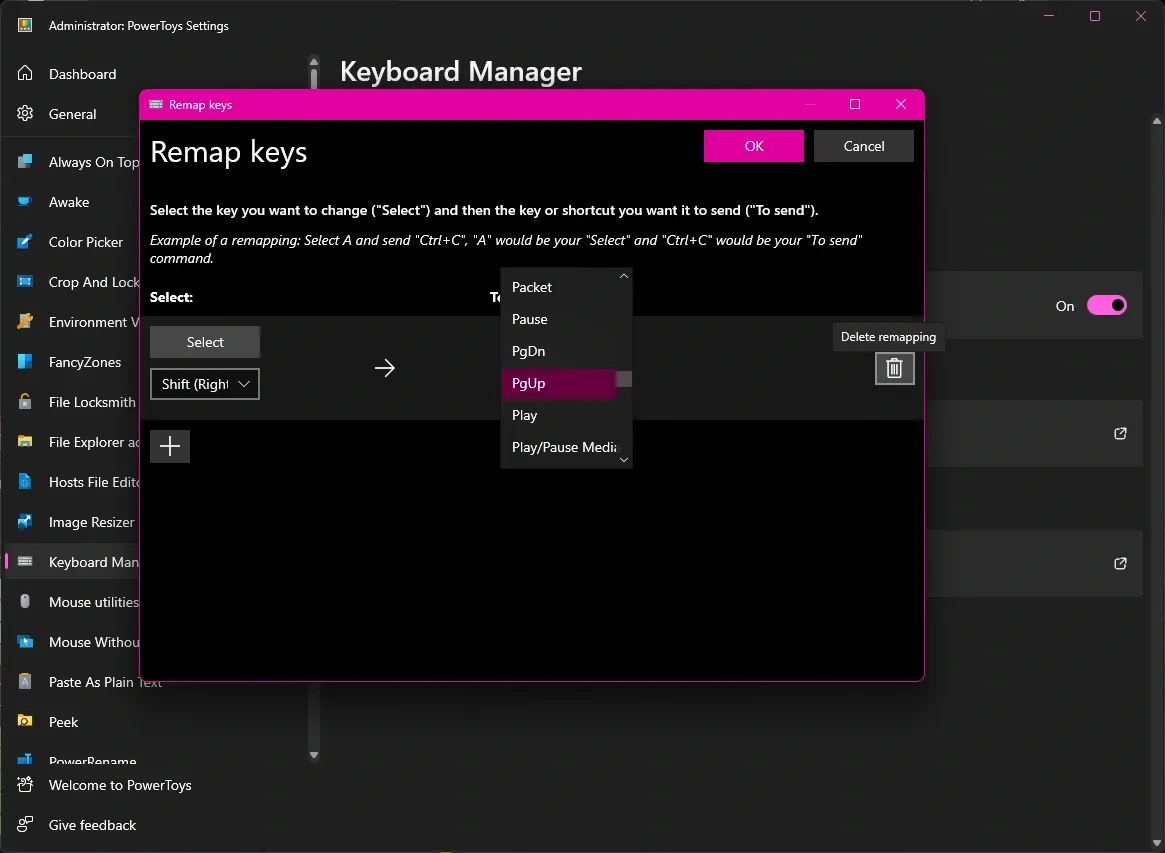
 PowerToys keyboard remapping feature lets Windows users change how their keyboard works when they have broken keys or want different key positions .
Many people stick to the standard QWERTY layout without knowing they can customize it . PowerToys Keyboard Manager provides a robust solution for users who need typing support in different languages, gaming customizations, productivity shortcuts, or fixes for broken keys . This free Microsoft tool lets users assign new functions to individual keys and turn complex button combinations into simple one-button commands .
Remapping works simply. Users can redefine any key or shortcut that follows specific rules and doesn’t clash with Windows-reserved keys . The Keyboard Manager module helps users place awkwardly positioned Shift or Alt keys in more comfortable spots . These features make PowerToys one of the best and simplest keyboard remapping tools that Windows 10 and 11 users can access.
Install and Set Up PowerToys

Image Source: Pureinfotech
Before you can remap keys with PowerToys, you’ll need to get this utility up and running on your Windows system. PowerToys gives you multiple ways to install it and needs specific setup steps to make keyboard remapping work properly.
Download PowerToys from GitHub or Microsoft Store
Your system must have Windows 11 (any version) or Windows 10 version 2004 (build 19041) or newer for PowerToys to work [1]. The utility works with both x64 and Arm64 system architectures [1]. You can install PowerToys in several ways:
Microsoft suggests getting it through GitHub or the Microsoft Store [1]. To install from GitHub, head over to the Microsoft PowerToys GitHub releases page and look for the Assets section. Get the right installer that matches your machine’s architecture (x64 or ARM64) and installation scope (per-user or machine-wide) [2]. Once downloaded, run the executable file, agree to the license terms, and click Install.
The Microsoft Store provides another way to get PowerToys. You’ll need the new Microsoft Store version, which works on both Windows 10 and 11 [2]. Just look up PowerToys in the Microsoft Store app and hit the Install button.
Package managers like WinGet, Chocolatey, and Scoop can also install PowerToys [2]. If you prefer WinGet, open Windows Terminal and type: winget install Microsoft.PowerToys -s winget [2].
Enable PowerToys to run at startup
PowerToys will start with your system by default after installation [3]. Still, it’s worth checking this setting to make sure your keyboard remappings stay active between restarts. Here’s how to verify PowerToys launches automatically:
-
Open the PowerToys app
-
Click on General in the left navigation pane
-
Under Appearance & behavior settings, ensure Run at startup is toggled ON [3]
This step is vital since keyboard remappings only work when PowerToys is active [4]. Without this setting, you’d have to start the application manually every time you restart your computer.
Turn on the PowerToys Keyboard Manager
The last setup step is to enable the Keyboard Manager module in PowerToys. While PowerToys has many utilities, we need to turn on the keyboard remapping feature specifically:
-
Within PowerToys, select Keyboard Manager from the left sidebar
-
Toggle the Enable Keyboard Manager switch to the ON position [5]
You can also turn this feature on through the PowerToys system tray icon by selecting More and switching on the Keyboard Manager toggle [5]. The keyboard remapper will be ready for setup once activated.
How to Remap a Key in Windows
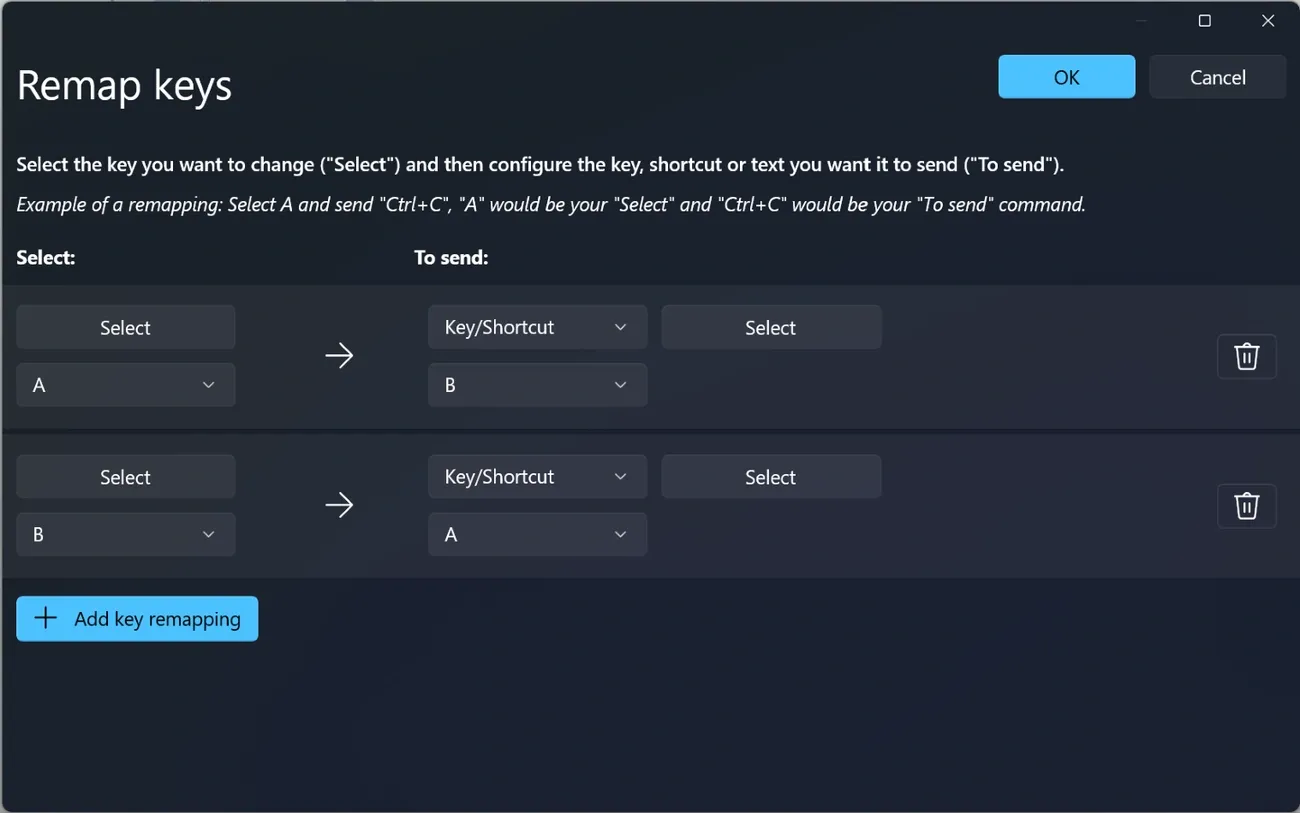
Image Source: learn.microsoft.com
PowerToys installation and Keyboard Manager activation makes key remapping simple. The PowerToys keyboard remapper offers a user-friendly way that lets you change your keyboard’s functions quickly.
Open the Keyboard Manager tool
PowerToys offers several ways to access the remapping interface:
-
Open PowerToys Settings and click on the Keyboard Manager tab in the left sidebar
-
Click the Remap a key button to launch the key mapping tool
-
You can also access it through the PowerToys system tray icon by clicking More and selecting Keyboard Manager
Select the key you want to change
The remapper window starts empty without any predefined key remappings. Here’s how to start:
-
Click the + Add key remapping or + Add button to create a new remap
-
Under the Select column, pick the physical key you want to remap
-
You can select from the dropdown menu or click the Type button and press your desired key
Choose the new function or key
The next step is deciding the new function after picking your key:
-
Move to the To send or Mapped To column
-
Select the new key function from the dropdown menu, or click Type and press your desired key
-
You can map to another key, create a keyboard shortcut, or disable the key completely
Let’s say you want Caps Lock to work as Ctrl for easier shortcut access. Just select Caps Lock in the first column and Ctrl in the second column.
Apply and test the remap
Now it’s time to implement your changes:
-
Click OK to confirm your selection
-
Click Apply to save all your remappings
-
PowerToys might show a warning if you’re disabling a key – just click Continue Anyway
Your new key mapping works right away. Note that PowerToys needs to run in the background for your custom mappings to work. Test your remapped keys in any application to make sure they work as expected.
Create and Customize Keyboard Shortcuts

Image Source: GitHub
PowerToys’ Keyboard Manager does more than basic key remapping – it lets you customize shortcuts in advanced ways. This flexibility helps users substantially boost their Windows typing experience by creating unique key combinations.
Remap a key to a shortcut
The Keyboard Manager lets you assign complex shortcuts to single keypresses. Here’s how to do it:
-
Open Keyboard Manager and select “Remap a key”
-
Click the “+” button to add a new mapping
-
Select the key you wish to modify under the “Key” column
-
In the “Mapped To” column, enter the shortcut combination (e.g., Ctrl+C)
This feature comes in handy when you need a single keystroke to perform multi-key actions [6].
Remap a shortcut to a key
PowerToys also lets you turn complex keyboard combinations into simpler actions:
-
Click “Remap a shortcut” in Keyboard Manager
-
Select “Add Shortcut Remapping”
-
Choose your shortcut (must start with a modifier key like Ctrl, Alt, Shift, or Win)
-
Select the single key or different shortcut you want it to trigger [7]
Limit remaps to specific applications
PowerToys can create app-specific remappings too:
-
When adding a shortcut remap, locate the “Target App” field
-
Enter the process name (not application name) of your target program
-
For example, use “msedge” instead of “Microsoft Edge” [7]
Disable a key completely
Some keys can cause more trouble than they’re worth. You can disable them completely:
-
Open “Remap a Key” in Keyboard Manager
-
Select the problematic key
-
Choose “Disable” from the “Mapped To” dropdown menu [8]
Note that these customizations only work while PowerToys is running [9].
Tips, Limitations, and Troubleshooting
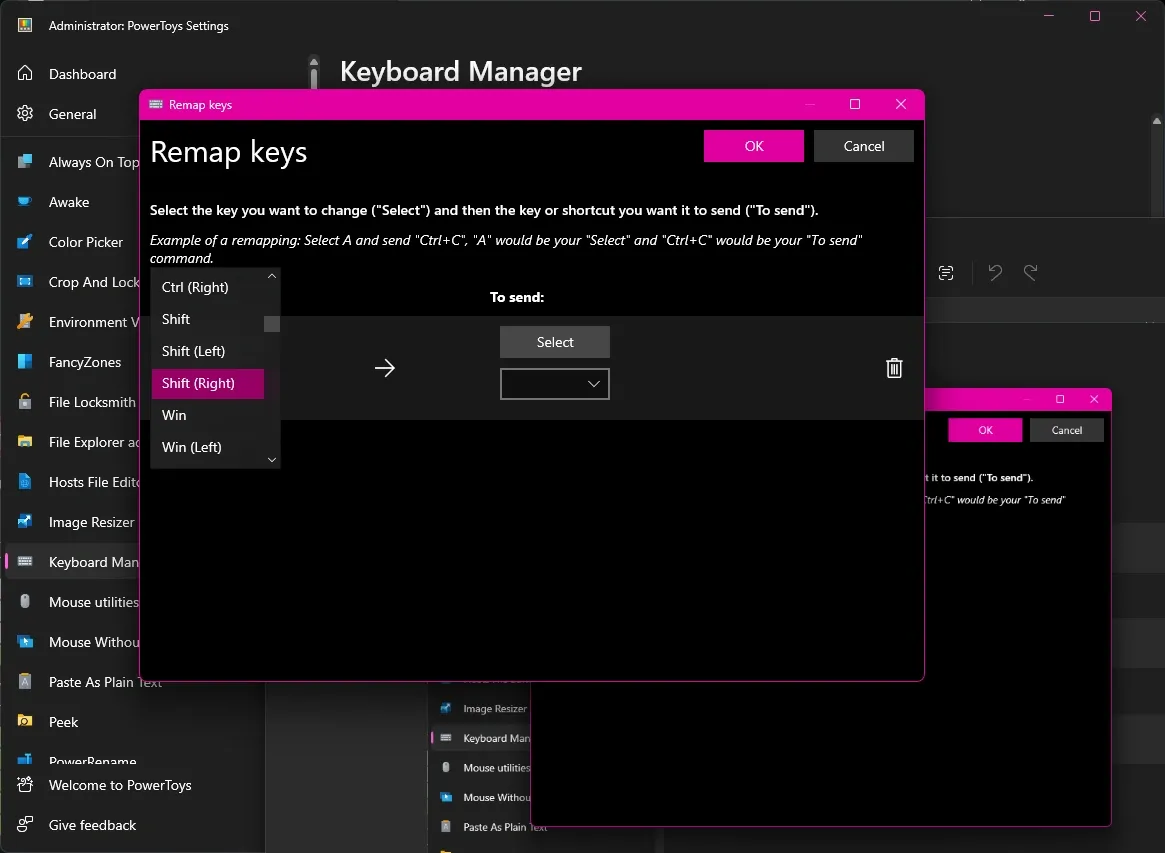
Image Source: TechRadar
PowerToys gives you flexible keyboard remapping options. You should know its limitations and how to troubleshoot to make the most of this tool.
Understand which keys can’t be remapped
PowerToys Keyboard Manager comes with specific limitations you need to know about. Windows reserves some key combinations that you can’t reassign, like Win+L and Ctrl+Alt+Del [7]. Most keyboards won’t let you remap the Function (Fn) key, though F1-F12 keys work fine. The Xbox Game Bar tends to launch with Win+G even after you try to change it [7]. The Pause key behaves differently – it only sends one key-down event and won’t repeat when you hold it [7].
Fix common remapping issues
Your remapping might stop working for several reasons. The target application might run in administrator mode while PowerToys doesn’t, which breaks the remapping [7]. Running PowerToys as administrator often fixes this [10]. Some apps that use keyboard hooks can clash with Keyboard Manager. You can fix this by turning Keyboard Manager off and on again in settings [7]. The remappings sometimes stop working after a while, so you might need to reopen PowerToys [1].
Remove or reset remaps
The Keyboard Manager lets you remove customizations easily. Just click the trash icon next to each mapping or use “Clear All” [2]. Remember to click “Apply” to save your changes. You can also uninstall PowerToys to get your keyboard back to normal after a restart [2]. Watch out for “orphaned key” warnings when you delete mappings [7].
Use PowerToys across Windows 10 and 11
PowerToys works the same way on Windows 10 and 11. The remapping handles different input languages well – if you change A to B on an English keyboard, typing A on a French layout still gives you B [7]. The Keyboard Manager handles multiple languages just like Windows does when you switch between them.
Conclusion
PowerToys keyboard remapping changes how Windows users work with their computers. This free Microsoft utility lets you reassign keys, create custom shortcuts, and set up keyboard configurations for specific applications. Keyboard Manager is one of the most available solutions that helps fix broken keys or increase efficiency through tailored layouts.
The setup process is straightforward with an easy-to-use interface. Once PowerToys is installed, remapping keys becomes a matter of picking original keys and giving them new functions. Converting complex shortcuts into single keypresses helps create efficient workflows, especially when you have to deal with power user tasks.
All the same, you need to know its limitations to make it work properly. Some Windows-reserved combinations can’t be reassigned, and admin privileges might conflict with the settings. PowerToys also needs to keep running for your mappings to work. Most problems can be fixed through simple troubleshooting like restarting the app or changing permission settings.
PowerToys Keyboard Manager ended up being a powerful customization tool that doesn’t need advanced technical knowledge. You can address ergonomic concerns, adapt to different languages, or create gaming-specific layouts. This utility gives Windows 10 and 11 users the ability to take full control of their keyboard’s experience. Standard QWERTY arrangements are no longer your only choice – your perfect keyboard layout is just a few clicks away.
Key Takeaways
PowerToys Keyboard Manager offers Windows users a free, powerful solution to customize their keyboard experience without technical complexity.
• Install PowerToys from GitHub or Microsoft Store – Requires Windows 10 (build 19041+) or Windows 11, with automatic startup enabled for persistent remapping.
• Remap any key in four simple steps – Open Keyboard Manager, select original key, choose new function, and apply changes immediately.
• Create advanced shortcuts and app-specific mappings – Transform complex key combinations into single presses or limit remaps to specific applications.
• Understand limitations before remapping – Windows-reserved combinations like Win+L and Ctrl+Alt+Del cannot be reassigned, and PowerToys must run continuously.
• Troubleshoot common issues easily – Run PowerToys as administrator if remapping fails, and disable/re-enable Keyboard Manager to resolve conflicts.
This utility works identically across Windows 10 and 11, supporting multilingual keyboards and offering solutions for broken keys, productivity enhancement, and gaming customization. Remember that your custom mappings only function while PowerToys remains active in the background.
FAQs
Q1. What is PowerToys and how does it help with keyboard remapping? PowerToys is a free Microsoft utility that allows Windows users to customize their keyboard layout. It includes a Keyboard Manager tool that enables users to remap keys, create custom shortcuts, and set up application-specific keyboard configurations.
Q2. Can I use PowerToys on both Windows 10 and Windows 11? Yes, PowerToys works identically on both Windows 10 (version 2004 or newer) and Windows 11. The keyboard remapping functionality is consistent across both operating systems.
Q3. How do I remap a key using PowerToys? To remap a key, open the PowerToys Keyboard Manager, click “Remap a key,” select the key you want to change, choose its new function, and click Apply. The changes take effect immediately.
Q4. Are there any limitations to key remapping with PowerToys? Yes, there are some limitations. Certain Windows-reserved combinations like Win+L and Ctrl+Alt+Del cannot be reassigned. Also, the Function (Fn) key typically can’t be remapped on most keyboards.
Q5. Do I need to keep PowerToys running for my key remaps to work? Yes, PowerToys must remain running in the background for your custom key mappings to function. It’s recommended to enable PowerToys to run at startup to ensure your remappings persist between system restarts.
References
[1] – https://github.com/microsoft/PowerToys/issues/35730
[2] – https://blog.acer.com/en/discussion/3103/how-to-remap-keyboard-in-windows-11-using-microsoft-powertoys
[3] – https://www.elevenforum.com/t/turn-on-or-off-run-at-startup-for-powertoys-in-windows-10-and-windows-11.11521/
[4] – https://www.zdnet.com/home-and-office/work-life/how-to-remap-keys-using-keyboard-manager-in-microsofts-powertoys/
[5] – https://www.techradar.com/computing/windows/how-to-remap-keys-in-windows-11-with-powertoys-keyboard-manager
[6] – https://winbuzzer.com/2024/03/29/how-to-remap-keys-on-windows-11-or-windows-10-xcxwbt/
[7] – https://learn.microsoft.com/en-us/windows/powertoys/keyboard-manager
[8] – https://www.howtogeek.com/disable-a-specific-key-or-shortcut-on-your-keyboard/
[9] – https://www.ninjaone.com/blog/reprogram-keyboard-shortcuts-in-windows-11/
[10] – https://stackoverflow.com/questions/67593307/microsoft-powertoys-key-mapping-not-working-in-visual-studio