

 Have you ever tried to copy text from an image but couldn’t? PowerToys OCR helps Windows users everywhere solve this frustrating problem.
PowerToys gives Microsoft power users a complete set of tools that improve the Windows experience . Text Extractor stands out as one of its most useful features that works well in both Windows 10 and 11 . This tool uses OCR (Optical Character Recognition) to turn words from images or screenshots into text that your computer can read .
Text Extractor’s value comes from its flexibility. You can grab text from any part of your screen – images, open windows, browsers, or even Windows Settings pages . The results might not always be perfect, but this handy tool saves you from typing everything manually . A few simple clicks let you pull text from photos and other visual content quickly .
This piece will show you how to install, set up, and make PowerToys OCR work for you. We’ll also look at advanced features, language options, and tips to get the best results from this powerful Windows tool.
Install and Set Up PowerToys OCR
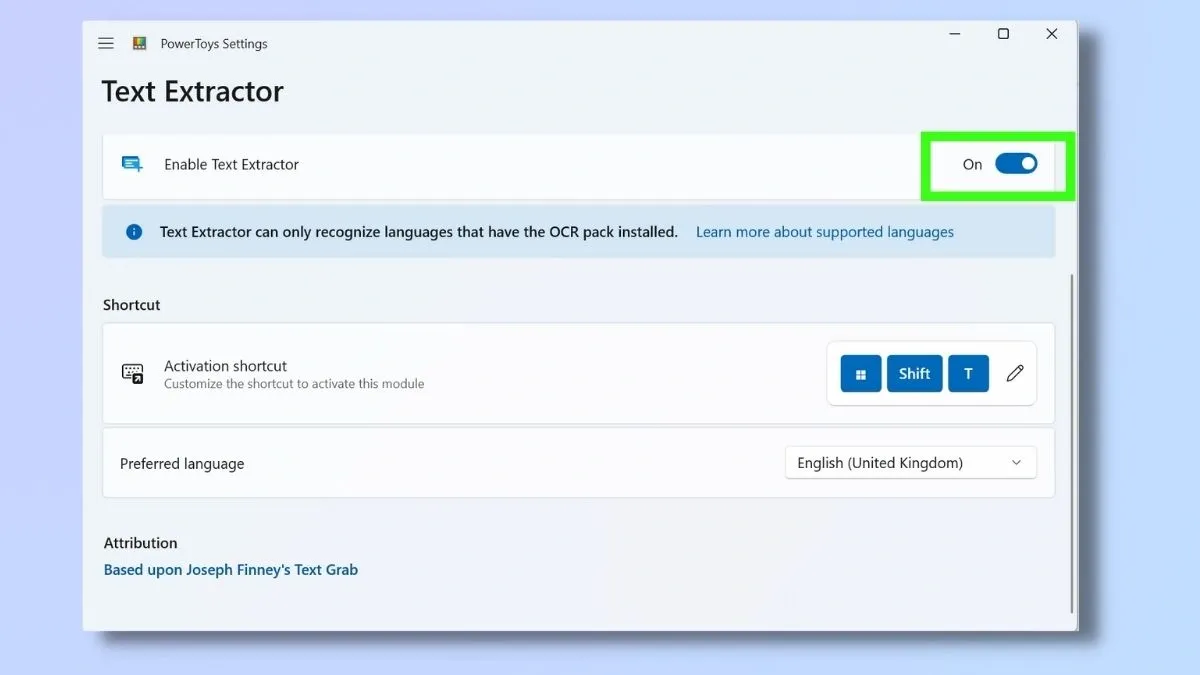
Image Source: Tom’s Guide
PowerToys OCR needs a quick setup to let you pull text from your screen. You’ll need to install it first, turn on the Text Extractor module, and pick your language.
Download and install PowerToys on Windows 10 or 11
Your system should meet these basic requirements: Windows 11 or Windows 10 version 2004 (build 19041) or newer, with either x64 or ARM64 architecture [1].
You can install PowerToys in several ways:
-
GitHub Installation – Head to the Microsoft PowerToys GitHub releases page and find the Assets section. Pick the installer that matches your machine’s architecture (x64 for most users) and installation scope (per-user or machine-wide) [2].
-
Microsoft Store – Most users should choose this option. Just search PowerToys in the Microsoft Store app and hit Install [2].
-
Command Line Installation – Package manager fans can install PowerToys with WinGet through PowerShell:
winget install Microsoft.PowerToys -s wingetMachine-wide installation needs this command:
winget install --scope machine Microsoft.PowerToys -s winget
Look for the PowerToys icon in your taskbar’s notification area after installation [3].
Enable the Text Extractor module
The Text Extractor feature needs activation:
-
Find the PowerToys notification icon, right-click it and select Settings [3].
-
A dashboard shows up with various modules.
-
Text Extractor appears in the left menu as you scroll down.
-
Switch “Enable Text Extractor” to On [4].
The default shortcut (Win + Shift + T) appears in settings. You can set a different shortcut if you want [5][4].
Set your preferred OCR language
PowerToys Text Extractor works only with installed OCR language packs [2]. Here’s how to set your language:
-
Look for “Preferred language” in Text Extractor settings.
-
Choose your language from the dropdown menu [2].
Missing your preferred language? Check installed language packs with this PowerShell command (run as administrator):
Get-WindowsCapability -Online | Where-Object { $_.Name -Like 'Language.OCR*' }
“NotPresent” means you need to install the language, while “Installed” shows it’s ready [2][6].
Add a new language pack with this command (swap “en-US” with your language code):
$Capability = Get-WindowsCapability -Online | Where-Object { $_.Name -Like 'Language.OCR*en-US*' }
$Capability | Add-WindowsCapability -Online
The installation might take a few minutes [2].
How to Use PowerToys Text Extractor

Image Source: gHacks
PowerToys makes text extraction from your screen a simple process. You can turn visual text into editable content with just a few steps.
Open the image, video, or screen with text
The text you want to extract should be visible on your screen. PowerToys Text Extractor works with any on-screen content – images, videos, error messages, or application windows [4]. You can capture text that you normally cannot highlight with this versatile tool [7].
Use the shortcut Win + Shift + T
Press Windows + Shift + T to start Text Extractor [8]. Your screen will darken right away, which shows that Text Extractor is active [4]. This darker overlay helps you see your capture area better.
Select the area with the crosshair tool
Your mouse cursor becomes a crosshair when the screen darkens [7]. Click and drag your primary mouse button to create a rectangle around the text you want to extract [4]. You can hold the Shift key to move the selection instead of resizing it [2]. The tool processes your selection and exits capture mode when you release the mouse button [2].
Paste the copied text into any app
PowerToys copies the extracted text to your clipboard using OCR technology [2]. You can paste this text into any app that accepts text input like Word, Excel, or Notepad [4]. Just open your preferred app and press Ctrl+V or right-click to select “Paste” [5].
Advanced Features and Language Support

Image Source: GitHub
PowerToys OCR capabilities go beyond simple text extraction with advanced features and support for multiple languages.
Install additional OCR language packs
Text Extractor in PowerToys works only with OCR language packs installed on your system [2]. You can check your system’s currently installed language packs with this PowerShell command (run as administrator):
Get-WindowsCapability -Online | Where-Object { $_.Name -Like 'Language.OCR*' }
The command output shows available languages and tells you if they are “Installed” or “NotPresent” [2]. To view all possible language options, run this command:
Get-WindowsCapability -Online | Where-Object { ($_.Name -Like 'Language.OCR*') -and ($_.State -Like 'NotPresent') } | Out-GridView
You can install a new language pack with this command (just change the language code as needed) [2]:
$Capability = Get-WindowsCapability -Online | Where-Object { $_.Name -Like 'Language.OCR*en-US*' }
$Capability | Add-WindowsCapability -Online
Switch between languages in Text Extractor
The Text Extractor interface shows a dropdown menu at the top of the screen when you press Win+Shift+T. This lets you pick from your installed language packs [9].
Use table or single-line output modes
Text Extractor adapts its output format to match what you need. While it has powerful capabilities, the results depend on your image’s quality. You may need to proofread the output, especially with small or cluttered text [10].
Tips, Limitations, and Best Practices
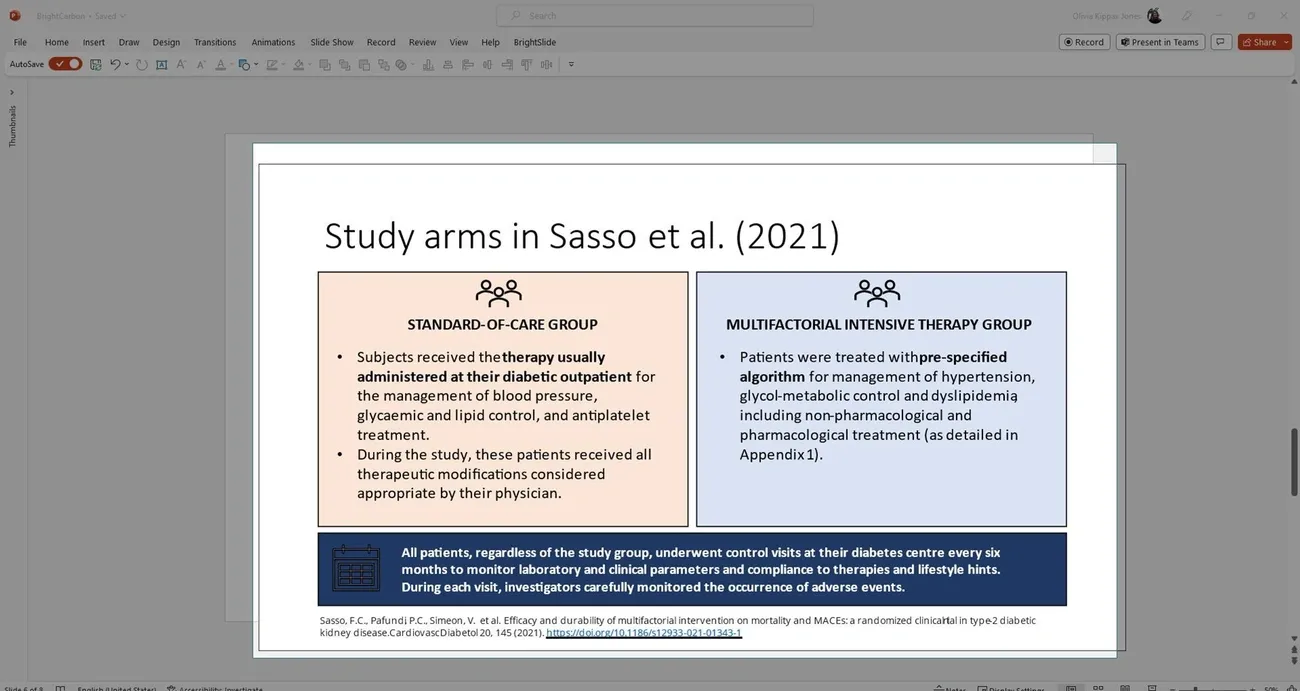
Image Source: BrightCarbon
PowerToys Text Extractor, just like most OCR tools, comes with limitations you should know about to get the best results. Getting top performance depends on several important factors.
Improve accuracy with better image quality
Text Extractor works harder when images are unclear or pixelated [5]. Your source material needs good lighting and strong background contrast to get the best results [5]. Sharp, high-quality images improve accuracy by a lot because blurry screenshots usually give you jumbled text output [3].
Use Zoom to enlarge small text
When text is small or hard to read, you can use your browser’s zoom feature to make the content bigger before capturing [4]. This helps Text Extractor recognize characters better [9]. You can save editing time after extraction by trying different table and single-line output modes [4].
Avoid diagonal or handwritten text
The selection tool reads text horizontally and doesn’t deal very well with diagonal arrangements [5]. Text Extractor usually fails to recognize handwritten notes accurately unless your handwriting is exceptionally neat [5]. Text that’s rotated or skewed also creates recognition problems [11].
Compare with Snipping Tool and other OCR tools
Windows 11’s Snipping Tool now has OCR capabilities [12]. PowerToys OCR runs faster but isn’t always as accurate as Snipping Tool [13]. PowerToys uses an older OCR API [13], while Snipping Tool runs on a more modern engine. Microsoft Lens or ShareX might work better for specific needs like handwritten text [3].
Conclusion
PowerToys Text Extractor helps Windows users grab text from images and non-selectable screen content. This OCR tool saves you from retyping text from screenshots, error messages, or embedded content manually.
A quick Win+Shift+T shortcut turns any visual text into editable content in seconds. On top of that, it lets you adjust language settings, add multiple OCR language packs, and pick different output modes based on what you need.
The tool’s impressive features come with some limitations. Text Extractor performs best with clear, high-quality images showing horizontal text with good contrast. You should zoom in when dealing with small text and avoid diagonal arrangements. The tool might not accurately capture handwritten notes.
Of course, PowerToys OCR won’t give you perfect results every time. But its convenience is nowhere near the occasional mistakes it makes. Windows users who want to speed up their workflow and save time should add this quick utility to their digital toolkit. The more you use the tool, the better you’ll understand its strengths and limits, which leads to improved text extraction results.
Key Takeaways
PowerToys OCR transforms how Windows users extract text from images and screens, offering a fast, free solution for converting visual content into editable text.
• Install PowerToys from Microsoft Store and enable Text Extractor module – Download the utility and toggle on the OCR feature in settings to get started.
• Use Win + Shift + T shortcut to capture any on-screen text instantly – This keyboard combination activates the crosshair tool for selecting text areas.
• Install additional language packs for multilingual OCR support – Use PowerShell commands to add OCR capabilities for different languages beyond English.
• Optimize accuracy with high-quality, horizontal text and good contrast – Clear images with proper lighting produce better results than blurry or diagonal text.
• Compare with Snipping Tool’s newer OCR engine for best results – While PowerToys is faster, Windows 11’s Snipping Tool may offer superior accuracy for complex text.
This powerful utility eliminates the tedious process of manually retyping text from screenshots, error messages, or any visual content, making it an essential tool for productivity-focused Windows users.
FAQs
Q1. How do I activate PowerToys Text Extractor? Press Windows + Shift + T to activate Text Extractor. Your screen will darken, and you can then use the crosshair tool to select the area containing the text you want to extract.
Q2. Can PowerToys OCR recognize text in languages other than English? Yes, PowerToys OCR can recognize multiple languages. You need to install additional OCR language packs and select your preferred language in the Text Extractor settings.
Q3. What types of text can PowerToys Text Extractor capture? PowerToys Text Extractor can capture text from various sources, including images, videos, error messages, and any visible content on your screen that cannot be normally selected or copied.
Q4. How accurate is PowerToys Text Extractor? The accuracy of PowerToys Text Extractor depends on the quality of the source material. It works best with clear, high-contrast text that is horizontally aligned. Small, blurry, or diagonal text may result in less accurate extraction.
Q5. How does PowerToys Text Extractor compare to Windows 11 Snipping Tool? PowerToys Text Extractor generally performs faster but may be less accurate than the Windows 11 Snipping Tool. The Snipping Tool uses a more modern OCR engine, while PowerToys relies on an older API. For specialized needs like handwritten text, other tools might be more suitable.
References
[1] – https://learn.microsoft.com/en-us/windows/powertoys/install
[2] – https://learn.microsoft.com/en-us/windows/powertoys/text-extractor
[3] – https://techcommunity.microsoft.com/discussions/windowsinsiderprogram/look-for-a-safe-image-to-text-converter-for-extracting-text-from-pictures/4417442
[4] – https://www.tomsguide.com/how-to/how-to-use-windows-11-powertoys-text-extractor
[5] – https://www.brightcarbon.com/blog/how-to-extract-text-from-an-image/
[6] – https://thecloudadmin.eu/post/2023/03/powertoys-text-extractor/
[7] – https://askleo.com/how-to-extract-text-with-text-extractor/
[8] – https://learn.microsoft.com/en-us/windows/powertoys/
[9] – https://tech.yahoo.com/general/articles/hidden-windows-11-feature-copies-073003071.html
[10] – https://www.techrepublic.com/article/microsoft-powertoys-cheat-sheet/
[11] – https://www.linkedin.com/pulse/9-biggest-ocr-limitations-how-overcome-them-vinnovate-technologies-6apdf
[12] – https://github.com/microsoft/PowerToys/issues/30159
[13] – https://www.reddit.com/r/Windows11/comments/1m6zkl1/windows_snipping_tools_text_extractor_vs/