

RGB lighting can transform any gaming setup, but managing multiple software programs for different devices creates confusion and conflicts. OpenRGB solves this problem by letting users control all their RGB hardware through one free application, eliminating the need for multiple manufacturer-specific programs. This lightweight and easy-to-use software works with hundreds of different RGB devices from various brands.
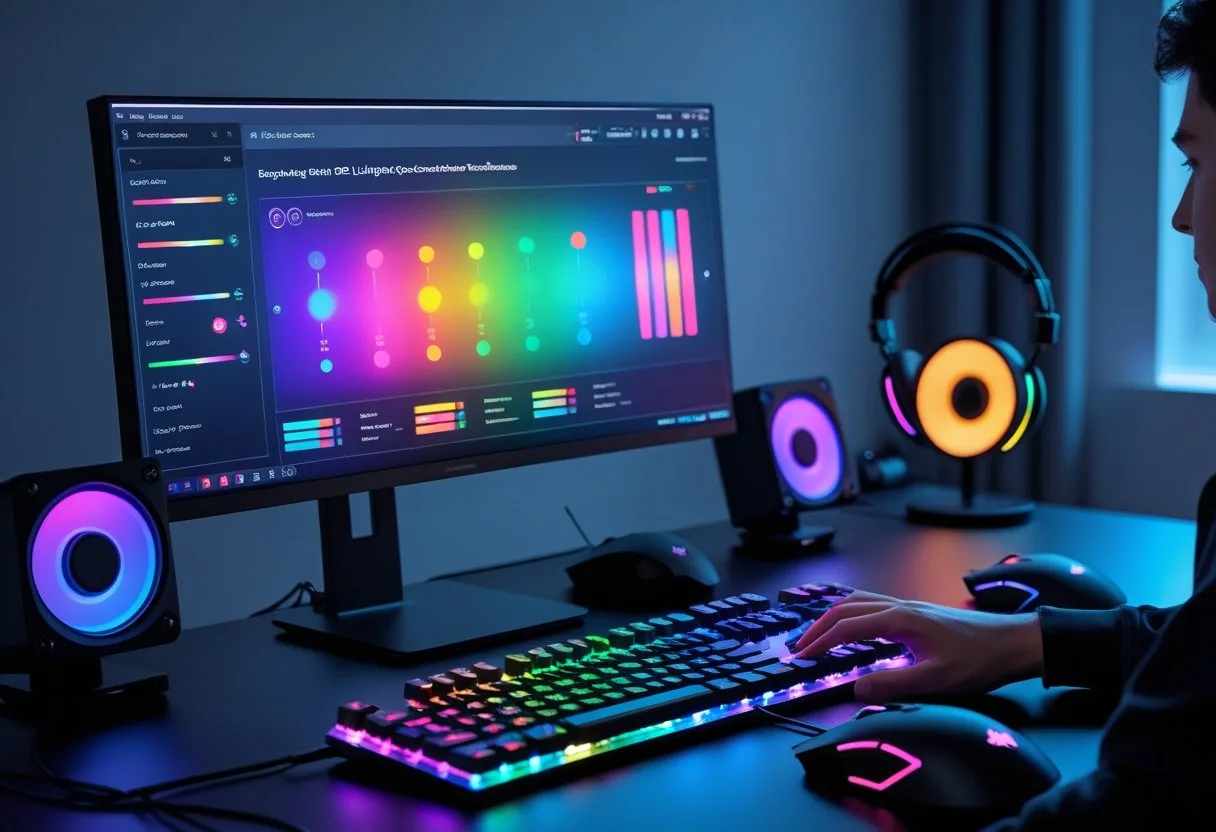
Many gamers struggle with RGB devices that don’t sync properly or clash with each other. OpenRGB automatically detects compatible hardware and provides a simple interface for creating custom lighting effects. Users can set up profiles, sync colors across all devices, and control everything from a single window.
Getting started with OpenRGB requires no technical expertise, making it perfect for beginners who want professional-looking results. The software offers extensive compatibility with RGB peripherals while providing advanced features for users who want more control over their lighting setup.
Key Takeaways
- OpenRGB replaces multiple RGB software programs with one unified application that controls all compatible devices
- The software automatically detects RGB hardware and provides simple tools for creating custom lighting effects
- Users can synchronize colors across different brands and devices without technical knowledge or complex setup procedures
Understanding RGB Lighting and OpenRGB

RGB lighting allows users to customize their computer components with millions of color combinations, while OpenRGB provides a unified way to control these lights across different manufacturers without bloated software.
What is RGB Lighting?
RGB lighting uses red, green, and blue LEDs to create customizable colors on computer components. Each color channel can be adjusted from 0 to 255, creating over 16 million possible color combinations.
Most modern gaming components include RGB lighting. Keyboards, mice, RAM sticks, and graphics cards commonly feature these customizable lights. Motherboards from ASUS, Gigabyte, and MSI often include built-in RGB zones.
Users can create static colors, breathing effects, or rainbow patterns. Some setups sync lighting with music or game events. Advanced users program complex lighting sequences across multiple devices.
RGB lighting serves both aesthetic and functional purposes. Gamers use specific colors to identify key mappings. Content creators match lighting to their brand colors.
Advantages of Using OpenRGB
OpenRGB eliminates the need for multiple manufacturer apps that compete for system resources. Instead of running separate software for Corsair, Razer, and motherboard lighting, users control everything from one program.
The software uses minimal RAM and CPU compared to manufacturer alternatives. This lightweight approach doesn’t impact gaming performance or productivity tasks.
Cross-platform compatibility sets OpenRGB apart from manufacturer software. It runs on Windows, Linux, and macOS systems. Most brand-specific apps only work on Windows.
OpenRGB works without requiring online accounts or internet connections. Many manufacturer apps demand user registration and constant connectivity.
The open-source nature means continuous development. Community members regularly add support for new devices and features.
Supported RGB Devices and Brands
OpenRGB supports hundreds of RGB devices across major manufacturers. ASUS motherboards with Aura Sync work with the software, including ROG and TUF series boards.
Gigabyte RGB Fusion devices are compatible, covering motherboards and graphics cards. MSI Mystic Light components also integrate with OpenRGB.
Popular peripheral brands work seamlessly. Corsair keyboards, mice, and RAM modules connect through OpenRGB. Razer Chroma devices including keyboards and headsets are supported.
RAM compatibility includes major brands like G.Skill, Corsair, and Kingston. Most modern DDR4 and DDR5 RGB memory works with the software.
Graphics cards from multiple manufacturers are supported. NVIDIA and AMD cards with RGB lighting can be controlled through OpenRGB.
The supported device list continues growing as developers add new hardware. Users can check compatibility before installation.
Getting Started With OpenRGB

OpenRGB installation works on both Windows and Linux systems, automatically detects most RGB devices, and provides a simple interface for controlling lighting effects. Users need administrator access on Windows and proper permissions on Linux for full device compatibility.
Installing OpenRGB on Windows and Linux
Windows Installation
Users can download and install OpenRGB from the official website. The software requires administrator privileges to access RGB hardware properly.
Windows users should right-click the OpenRGB executable and select “Run as administrator” for the first launch. This step ensures the program can detect and control RGB devices correctly.
Linux Installation
Linux users have several installation options:
- Download pre-compiled binaries
- Install through package managers
- Compile from source code
Linux installations require proper USB permissions. Users need to add their account to the appropriate groups or set up udev rules for device access.
Initial Setup and Device Detection
OpenRGB automatically tries to detect RGB hardware when users start the application. The detection process may take several seconds before the main window appears.
An empty main window means OpenRGB could not find any compatible devices. Users should check their device connections and restart the program with proper permissions.
Compatible devices include products from many manufacturers that users can verify through the settings menu. The supported devices list contains hundreds of verified RGB products with a search function.
First-time users should ensure their RGB devices are powered on and connected properly before launching OpenRGB.
Navigating the User Interface
The main window displays detected RGB devices in a list format. Each device shows its name, type, and current lighting mode.
Users can select individual devices to access their specific controls. The interface shows available lighting modes, colors, and brightness settings for each selected device.
Key Interface Elements:
- Device list on the left side
- Control panels for selected devices
- Settings menu for advanced options
- Profile management tools
The settings tab contains important features like the supported devices database and configuration options. Users can create custom profiles to save their preferred lighting setups across multiple devices.
Customizing RGB Lighting Effects
OpenRGB gives users complete control over their RGB lighting with tools to change colors, adjust device settings, and save custom configurations. The software works with individual LEDs and can sync effects across multiple devices.
Changing Colors and Modes
RGB devices in OpenRGB have different modes that control how the lighting behaves. Most devices include at least one direct mode for manual LED control and several built-in effect modes.
Users can access device modes through OpenRGB’s interface. Each mode offers different color options and effects.
Common RGB lighting modes include:
- Direct Mode – Full control over individual LEDs
- Static Mode – Solid colors across all LEDs
- Breathing Mode – Smooth fading in and out
- Rainbow Mode – Cycling through color spectrum
- Spectrum Cycle – Rotating color patterns
The Effects Plugin adds advanced lighting options like Rainbow Wave, Spectrum Cycling, and audio visualization. These effects sync across all compatible devices.
Configuring Per-Device Lighting
Each connected device can have unique lighting settings in OpenRGB. Users select individual devices from the main interface to adjust their specific properties.
The Toggle LED View feature shows each LED on screen in real-time. This visual layout matches the actual device design and makes customization easier.
Device configuration options:
| Setting | Description |
|---|---|
| Brightness | LED intensity level |
| Speed | Animation timing |
| Direction | Effect movement pattern |
| Color Count | Number of active colors |
Different devices support different numbers of LEDs and zones. Graphics cards might have multiple lighting zones while keyboards have individual key lighting.
Creating and Saving Custom Profiles
OpenRGB profiles store complete lighting configurations for quick switching between setups. Profiles save colors, modes, and device-specific settings.
Users create profiles by setting up their desired lighting and saving the configuration. The software stores these settings for future use.
Profile management steps:
- Configure all device lighting settings
- Click the save profile button
- Name the profile for easy identification
- Load profiles anytime from the interface
Profiles work across system restarts and can include settings for multiple devices. Advanced users can share profile files with others or backup their configurations.
The software supports automatic profile loading on startup. This feature ensures custom RGB lighting activates immediately when the computer boots.
Synchronizing RGB Across Multiple Devices
OpenRGB allows users to control lighting from different manufacturers through one program. The software handles brand mixing, motherboard integration, and prevents conflicts between multiple RGB applications.
Mixing Devices From Different Brands
OpenRGB works across devices from multiple manufacturers without requiring separate software for each brand. Users can sync Corsair keyboards with ASUS motherboards or combine Razer mice with MSI graphics cards.
The software detects compatible devices automatically when launched. Popular supported brands include:
- ASUS – ROG motherboards, keyboards, mice
- MSI – Motherboards, graphics cards, coolers
- Corsair – RAM, keyboards, headsets, fans
- Gigabyte – Motherboards, graphics cards
- Razer – Keyboards, mice, headsets
Each device appears in OpenRGB’s main window once detected. Users can then apply the same color profiles or effects across all devices regardless of brand.
The unified interface manages RGB lighting effects on motherboards, graphics cards, RAM modules, fans, and peripherals from a single program.
Managing Motherboard and Peripheral Sync
Motherboard RGB headers often control case fans and LED strips separately from the main board lighting. OpenRGB treats each RGB zone as an individual device for precise control.
ASUS AURA-compatible motherboards typically show multiple entries in OpenRGB. One controls the motherboard itself while others manage connected RGB devices.
MSI and Gigabyte boards work similarly. Users can sync all motherboard zones together or control each zone independently.
Important steps for motherboard sync:
- Close manufacturer RGB software before opening OpenRGB
- Run OpenRGB as administrator on Windows
- Allow detection time for all connected devices
- Group devices manually if automatic sync fails
Hardware Sync Plugin changes RGB colors based on system temperatures and other measurements. This helps users monitor CPU or GPU heat through their lighting.
Avoiding Software Conflicts
Running multiple RGB programs simultaneously causes device conflicts and crashes. Manufacturer software like ASUS Armoury Crate, MSI Dragon Center, or Corsair iCUE must be closed before using OpenRGB.
Common conflict sources:
- ASUS Armoury Crate
- MSI Dragon Center
- Corsair iCUE
- Razer Synapse
- Gigabyte RGB Fusion
Users should disable these programs from starting with Windows. This prevents automatic launches that interfere with OpenRGB device detection.
Some devices require manufacturer software installation for initial setup. Users can install the original software, configure devices, then uninstall it before switching to OpenRGB.
OpenRGB may need administrator privileges to access certain devices properly. The main window appears empty when OpenRGB cannot detect devices, usually indicating permission issues or software conflicts.
Device detection takes time during startup. Users should wait for the detection process to complete before assuming their hardware is incompatible.
Advanced OpenRGB Features
OpenRGB offers powerful plugin support and external control options that extend far beyond basic lighting customization. These features enable third-party integrations, automated responses, and comprehensive system-wide RGB management.
Plugin and API Integrations
OpenRGB provides a plugin interface that allows developers to add custom functionality directly to the application. Users can install community-created plugins to expand their lighting control options.
The software includes a network-based Software Development Kit that enables third-party applications to control RGB devices. This SDK supports multiple programming languages including C++, Python, C#, and Java.
Game integration plugins can sync lighting effects with gameplay events. Music visualization plugins create dynamic lighting that responds to audio output in real-time.
The SDK features a versioning system that maintains backwards compatibility. Older applications continue working with newer OpenRGB versions, while new applications can access legacy OpenRGB installations.
Users can develop custom applications that communicate with OpenRGB through network protocols. This allows for complex automation scenarios and integration with home automation systems.
Automation and External Controls
OpenRGB supports automated lighting control through external scripts and applications. Users can create time-based lighting schedules or event-triggered responses using the SDK.
Third-party software can control all connected RGB devices simultaneously through OpenRGB’s unified interface. This eliminates the need for multiple manufacturer-specific applications running concurrently.
Ambient lighting systems can adjust RGB colors based on screen content or environmental factors. Music visualization tools create synchronized light shows across all compatible hardware components.
The network-based control system allows remote RGB management from other devices on the same network. Users can control their computer’s lighting from mobile applications or web interfaces.
Custom automation scripts can integrate OpenRGB with smart home platforms like Home Assistant or OpenHAB. This enables RGB lighting to respond to various sensors and triggers throughout the home environment.
Troubleshooting and Tips for Beginners
New OpenRGB users often face device detection problems and compatibility challenges with their RGB lighting setup. Getting connected with community resources helps solve most issues quickly.
Common Compatibility Issues
Device Detection Problems
OpenRGB not detecting devices is the most common issue beginners face. The software automatically scans for RGB hardware when it starts.
If the main window appears empty, OpenRGB cannot find any devices. Windows users should try running the program as administrator first.
Motherboard Compatibility
Motherboards with built-in RGB headers sometimes conflict with OpenRGB detection. Users need to disable manufacturer RGB software like ASUS Aura or MSI Mystic Light.
Some motherboards require specific drivers or BIOS settings changes. Checking the device compatibility list before installation prevents many problems.
Hardware Access Issues
RGB lighting devices may need special permissions to work properly. Linux users often need to add themselves to specific user groups.
USB RGB devices sometimes require unplugging and reconnecting after OpenRGB installation. A computer restart can also fix detection issues.
Staying Up to Date With Community Support
Official Resources
The OpenRGB troubleshooting guide provides step-by-step solutions for common problems. Users can select their language for better understanding.
Regular software updates add support for new RGB devices and fix existing bugs. Checking for updates monthly ensures the best compatibility.
Community Help
Reddit communities and Discord servers offer real-time help from experienced users. Many problems have already been solved by other community members.
The OpenRGB community maintains device compatibility lists and installation guides. These resources save time when setting up new hardware or troubleshooting issues.
Frequently Asked Questions
New users often need help with setup steps, device connections, and safety measures when starting with OpenRGB. Common concerns include creating custom profiles, comparing software options, and fixing technical problems.
What are the first steps I should take to start using OpenRGB for customizing my RGB devices?
Users should begin by downloading OpenRGB from the official website and installing the software on their system. The program will automatically scan for compatible RGB devices when it opens.
Before making changes, users need to close any existing RGB software from other manufacturers. These programs can conflict with OpenRGB and prevent proper device control.
The OpenRGB getting started process shows a main window that lists all detected RGB devices automatically. Users can then select individual devices to begin customization.
Users should test basic color changes on one device first. This helps confirm the software works correctly before setting up complex lighting effects.
How can I connect and synchronize different RGB devices using OpenRGB?
OpenRGB detects compatible devices automatically when they connect to the computer. Users can view all connected devices in the main interface window.
The software allows users to control multiple devices at once through group selections. Users can apply the same colors and effects across different brands and device types.
Synchronization works by setting identical timing and color patterns across selected devices. Users select multiple devices and apply changes to create unified lighting displays.
The network-based SDK feature enables third-party software integration for advanced synchronization options. This allows game integrations and music visualization across all connected RGB devices.
What safety precautions should I consider to prevent hardware issues when using OpenRGB?
Users should create backups of existing RGB software settings before switching to OpenRGB. This allows them to restore original configurations if needed.
Starting with conservative settings helps prevent potential hardware stress. Users should avoid maximum brightness levels and rapid effect changes initially.
Monitoring device temperatures during extended use helps identify potential overheating issues. Users should reduce lighting intensity if devices become unusually warm.
Users need to ensure their power supply can handle all RGB devices running simultaneously. Insufficient power can cause system instability or device damage.
Can I create custom lighting profiles with OpenRGB, and how can I save or share them?
OpenRGB allows users to create custom lighting profiles with specific colors, effects, and timing settings. Users can save these profiles for different games, activities, or moods.
The software stores profile settings locally on the user’s computer. Users can load saved profiles quickly without recreating complex lighting setups each time.
Profile sharing requires manual file transfer between users currently. Users can copy profile files to share their custom lighting configurations with others.
The plugin interface system provides additional functionality for profile management and sharing features through community-developed extensions.
What are the key differences between OpenRGB and other RGB software solutions?
OpenRGB works across multiple device brands without requiring separate manufacturer software. Traditional RGB programs only control devices from specific companies.
The lightweight and easy-to-use design contrasts with manufacturer software that often includes unnecessary features and complex interfaces.
OpenRGB operates as open-source software with community development and support. Manufacturer software remains proprietary with limited customization options.
Cross-platform compatibility allows OpenRGB to run on Windows, Linux, and macOS systems. Most manufacturer RGB software only supports Windows operating systems.
How do I troubleshoot common problems encountered while setting up or using OpenRGB?
Users should check the device view in OpenRGB first when RGB devices don’t respond correctly. If colors display properly there, the issue lies with specific settings rather than device communication.
Restarting OpenRGB often resolves temporary connection issues with RGB devices. Users should also verify that conflicting manufacturer software isn’t running in the background.
Permission issues on Linux systems can prevent proper device access. Users may need to run OpenRGB with appropriate permissions or install udev rules for device recognition.
The troubleshooting approach involves testing individual devices separately to identify which specific hardware or settings cause problems in multi-device setups.