

 A good file search engine for Windows can make life easier when you’re tired of waiting for Windows’ built-in search results. The default Windows search is painfully slow. Specialized search tools can index a million files in just one second, which changes how people work with their files.
Desktop search tools have become a must-have for professionals, students, and everyday users who need quick access to their files, emails, and data. These small but powerful apps let users find documents, emails, and even specific content with just a few keystrokes. Everything—a popular choice—uses just 14 MB of RAM and needs less than 9 MB of disk space on a fresh Windows install. When handling about 1,000,000 files, it needs only 75 MB of RAM. X1 Search takes things further by showing results five times faster than typical desktop search options.
This piece looks at 13 of the best Windows search tools you can get in 2025. We’ve tested each one for speed and how well they work. You’ll find everything from light and fast options like Everything to special tools like Wise JetSearch that can look through all your drives at once. Each tool brings something different to make finding files easier.
Everything
Image Source: Wikipedia, the free encyclopedia
Everything is a minimalist file search engine that finds files and folders by name at blazing speeds. The software shows all files on your computer right away (that’s why it’s called Everything) and filters them as you type [1].
Everything Key Features
The software’s lightning-fast search capability makes it stand out from the crowd. It can index file and folder names within seconds. A new Windows 10 installation with about 120,000 files takes just 1 second to index. The indexing time extends to about 1 minute for 1,000,000 files [1]. The software keeps track of file system changes and updates search results immediately to show any modifications [1].
The program comes with powerful search options. Users can use Boolean operators and wildcards to find exactly what they need [2]. While the software focuses on indexing file names, you can search file content using the content: search function. This takes longer since content isn’t part of the index [1].
The software runs lean on system resources. A fresh Windows 10 installation needs only 14 MB of RAM and under 9 MB of disk space. Even with 1,000,000 files, it uses just 75 MB of RAM and 45 MB of disk space [1].
Everything Pros and Cons
Pros:
-
File indexing and searching at incredible speeds [2]
-
Light on system resources [2]
-
Easy-to-use interface [1]
-
Immediate file system updates [1]
-
Regular expressions support [3]
Cons:
-
File names only in the index, not content [1]
-
Simple interface needs visual improvements [2]
-
Search syntax takes time to learn [2]
-
Results lack smart sorting [3]
Everything Pricing
The software is completely free without any ads, bloatware, or attempts to upsell [3]. The developer accepts donations and suggests $5 as a contribution [2]. Everything Server adds features like user accounts for access control and group policy support. Businesses need a site license while personal users can use it free [4].
Everything Best Use Case
The software shines when you need to find specific file types across your system [2]. Users with large file collections who search by file names will find it most useful. The software proves invaluable on older systems where Windows search struggles to perform [3].
Listary
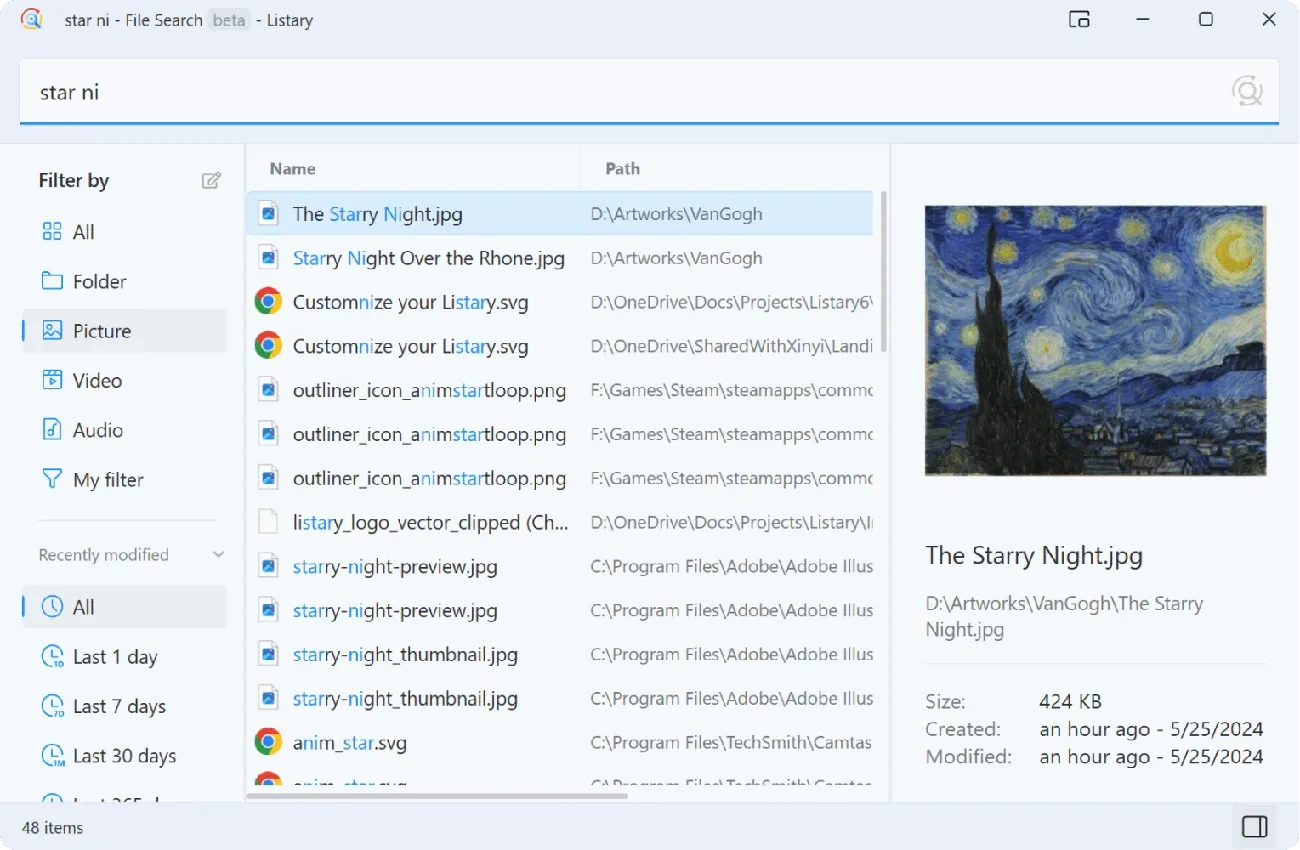
Image Source: www.listary.com
Listary brings together powerful file search capabilities and an intelligent app launcher that creates an unmatched experience for Windows users. Bopsoft developed this utility to improve file management and application launching with a user-friendly interface [5].
Listary Key Features
The heart of Listary lies in its “Find As You Type” feature that gives immediate search results as users type [5]. This program matches Everything in speed and memory usage for finding files [1]. The software has an intelligent sorting algorithm that prioritizes files based on how often you use them and when you last opened them. This makes your frequent items easier to find [1].
Quick Switch lets users jump straight to specific folders when saving or opening files without tedious navigation [1]. The file preview feature shows content without opening files with a simple Alt+P press [1].
File Explorer integration shines as a useful feature. Users can search within a directory just by typing, without clicking any search field [2]. The software supports path-based searching with backslash commands and has fuzzy matching to find files even with typos [6].
Listary Pros and Cons
Pros:
-
Intelligent file search with built-in sorting algorithm [1]
-
Clean, user-friendly interface [1]
-
Supports fuzzy search and Pinyin [1]
-
Light on system resources, stays responsive [2]
-
Boosts productivity with File Explorer integration [2]
Cons:
-
Dark theme requires payment [4]
-
Does not support regular expressions [1]
-
Cannot combine smoothly with third-party software [1]
-
Limited advanced search syntax in free version [4]
-
No network drive indexing in free version [4]
Listary Pricing
Listary has a free version for personal use with all simple features [4]. The Pro version costs $19.95 as a one-time payment and comes with lifetime free updates [4]. Pro features come with a commercial use license, dark theme, custom filters, network drive indexing, and advanced search syntaxes [4]. The free version gives enough functionality to meet most users’ needs [2].
Listary Best Use Case
Listary works best for users who often need to open files and want to optimize their workflow [1]. Its launcher feature with smart sorting makes it perfect for people who repeatedly use the same files and applications [1]. The software’s gentle learning curve and attractive UI make it a great choice for anyone looking for a simple yet powerful tool to boost their productivity [1]. Users who feel frustrated with Windows’ built-in search will find this responsive alternative especially helpful [6].
Agent Ransack
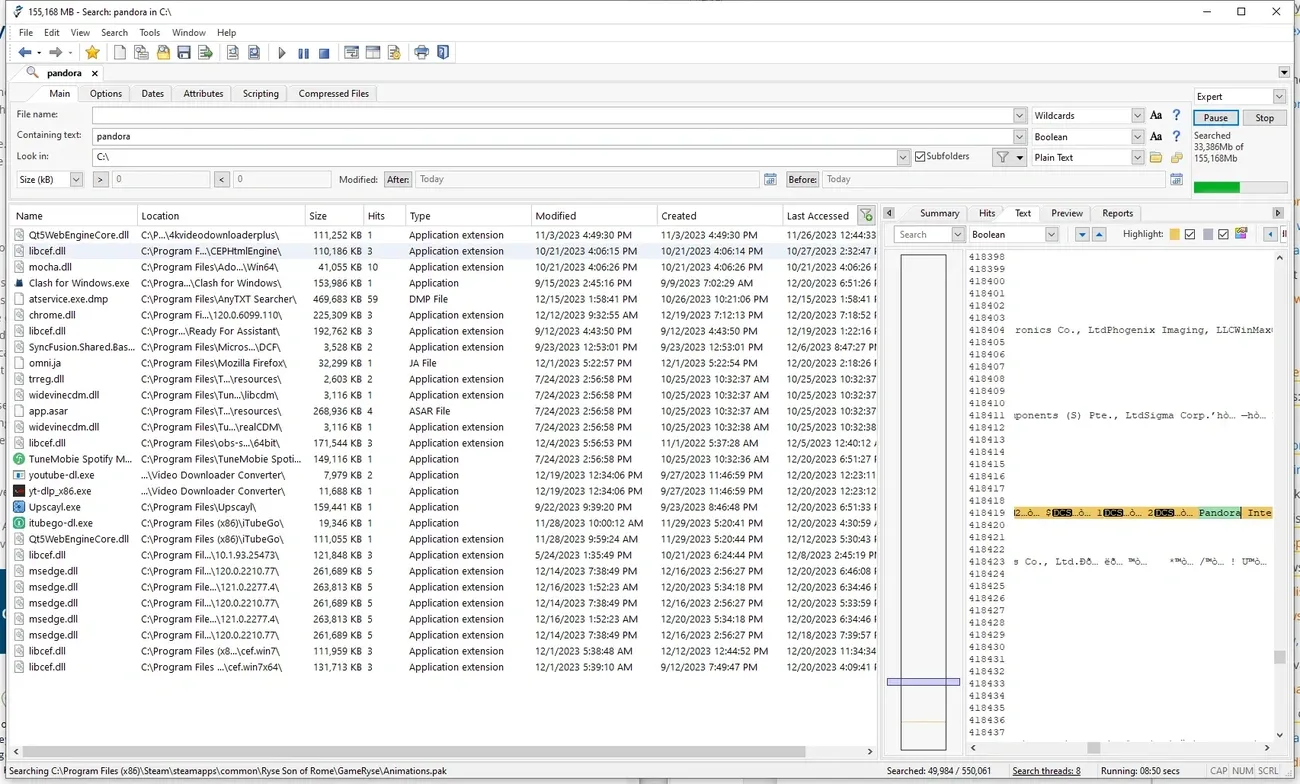
Image Source: Anytxt Searcher
First released in April 2000, Agent Ransack is a veteran file search tool from Mythicsoft that helped users find files for over 25 years [7]. This Windows search tool works in two modes – a free Lite version for both personal and commercial use, and a Professional mode with extra paid features [7].
Agent Ransack Key Features
Agent Ransack gives users three distinct search modes to find files quickly. The Multi-phase mode (default) adds files to a queue for immediate search as users find them. Immediate mode searches files right after finding them, but only moves forward when a content searching thread becomes free. The Ordered mode arranges files in a specific sequence before searching [3].
Users can combine search terms effectively with Boolean expressions (AND, OR, NOT) [7]. Agent Ransack also has Perl compatible regular expressions that let users create complex search patterns [7]. The “Calculate Hit Count” feature shows the number of hits in each file and makes results easier to read [3].
The tool uses “Just In Time” (JIT) searching that looks at just enough of a file to determine if it matches – this helps a lot when searching through large files [3]. Users can see found text with highlighted keywords without opening each file [7].
Agent Ransack Pros and Cons
Pros:
-
Quick search algorithms reduce waiting time for results [7]
-
Support for popular Office formats like Office 2010 and OpenOffice [7]
-
Users can share results through reports, printing, and exporting [7]
-
Works with Windows 10/11 and Windows Server editions [7]
-
A ‘locked down’ version works in restricted environments [7]
Cons:
-
Runs only on Windows platforms – not portable [8]
-
Pro version needed for some advanced features
-
No mention of FIPS 140-2 compliance in vendor documentation [8]
-
Limited enterprise support without commercial support purchase [8]
Agent Ransack Pricing
The Pro license comes in three tiers: Standard ($79) lets you install on up to 3 Windows systems per licensed user. Technician ($142) allows unlimited installations per named user. Floating ($206) supports a specific number of concurrent users [9]. Volume discounts start at $74 per license for 25-99 users [9]. All purchases come with a 30-day money-back guarantee [9].
Agent Ransack Best Use Case
Agent Ransack performs better than Windows’ built-in search utility for searching file content [10]. Programmers and technical users who need custom searches will find it most useful [11]. The software serves users with large data collections who need deep content searching capabilities [8]. Legal, finance, and IT sectors benefit from its quick data retrieval and analysis features [8].
SeekFast
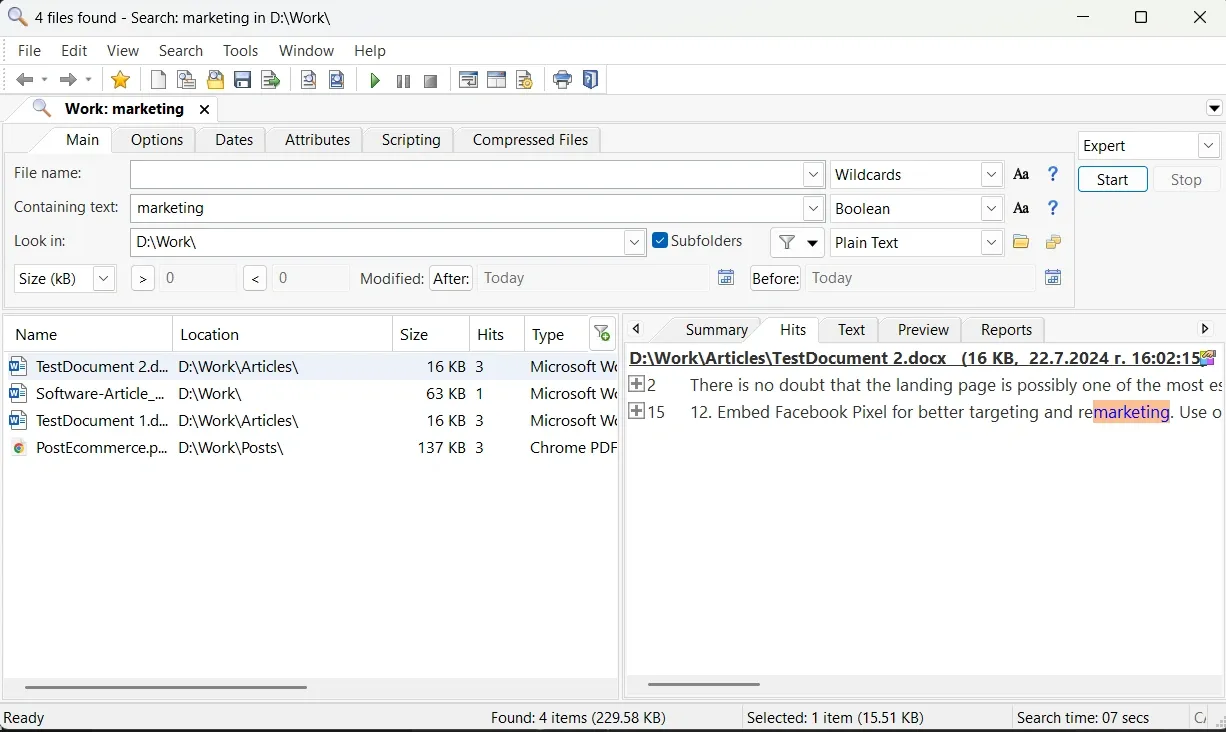
Image Source: SeekFast
SeekFast helps you search text inside documents without indexing. This Windows search tool finds specific content inside files instead of just searching file names.
SeekFast Key Features
SeekFast’s strength comes from knowing how to search text inside documents and rank results like in Google search results [12]. Users see sentences with their search terms right in the interface, and keywords show up in red [12].
The tool works with many file types including Microsoft Office documents, PDFs, OpenOffice files, e-books, audio/video file properties, email files, programming language files, and more [12]. Users can open documents with one click or preview text sections without opening the original program [12].
The best part? No indexing needed. This means no background processes eating up system resources or showing old results [12]. SeekFast also works right inside File Explorer. Just right-click any folder to search what’s inside [12].
SeekFast Pros and Cons
Pros:
-
Searches inside files without indexing
-
Ranks results by importance
-
Shows content previews without opening files
-
Works with Windows File Explorer
Cons:
-
Free version only searches 50 files at once [1]
-
Files must be under 1GB each [1]
-
Mac version can’t handle DOC files [1]
-
Logical operators aren’t supported yet [1]
-
Large file collections slow things down
SeekFast Pricing
The free version lets you search 50 files at the same time [1]. The full version handles up to 1 million files with a lifetime license [13]. You can choose from: Personal License ($29 one-time) for 3 computers, Corporate License ($78) for 20 computers, and Enterprise License ($145) for 150 computers [13]. Every paid license comes with lifetime updates and email support [13].
SeekFast Best Use Case
SeekFast shines when professionals need to dig through document content rather than just look at filenames [14]. Social workers, researchers, and professionals who often search through case files find it really useful [15]. The tool becomes essential when you have thousands of documents stored on your computer [5]. Right now, over 50,000 users from all types of industries use SeekFast [5].
UltraSearch
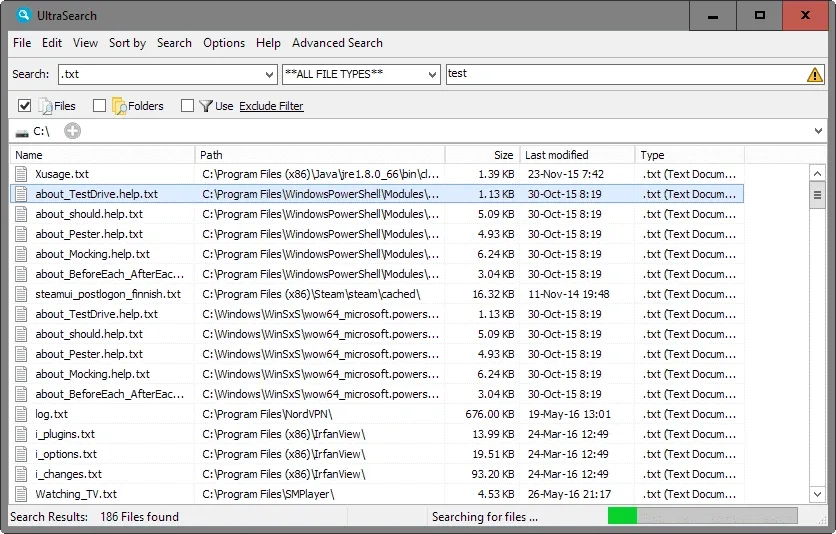
Image Source: gHacks
UltraSearch makes use of the Master File Table (MFT) of NTFS partitions directly, unlike other search utilities that depend on indexing. This powerful windows search tool from JAM Software delivers lightning-fast results without creating index files [16]. The tool achieves exceptional speed and minimizes system resource usage.
UltraSearch Key Features
UltraSearch scans drives instantaneously, which sets it apart from other tools. The software has a complete file content search feature that works with text files, PDFs, and Office documents. Search results show exact matches with highlights [17]. The tool supports complex search queries and lets you use keywords like ‘AND’ or ‘OR’ with bracket grouping to filter results better [16].
A clear, easy-to-use interface displays file previews for images, videos, and office documents [16]. Users can organize results by name, size, and file age [16]. The software also has a portable version you can run from USB drives without installation [16].
UltraSearch Pros and Cons
Pros:
-
Lightning-fast search without maintaining an index file [16]
-
Minimal system resource usage with internal memory only [16]
-
Live results appear as you type [4]
-
Dark mode support with responsive developer assistance [18]
-
Finds hidden system files other tools might miss [6]
Cons:
-
Free version has fewer features than Professional [2]
-
Network drive support doesn’t work reliably in some versions [6]
-
No thumbnail preview in certain configurations [6]
-
Content search unavailable for some file types [19]
-
Users need to learn advanced settings for best results [6]
UltraSearch Pricing
The software comes in two versions: a Free Edition with simple search features and a Professional Edition priced at $33.00 as a one-time purchase [6]. New users get a “Pro Phase” that unlocks all Professional features for a trial period [20]. The Free Edition lets you search by file name and content on local drives but doesn’t support network/SharePoint search or advanced file operations [2].
UltraSearch Best Use Case
System administrators and power users who manage large file collections on NTFS drives will find UltraSearch most useful [6]. The software works best in environments where you need to locate files quickly without background indexing processes slowing things down. Technical professionals who need to find hidden or system files will find this tool invaluable [6]. The Professional version’s network and SharePoint integration makes it ideal for businesses that need company-wide file search capabilities [20].
FileSeek
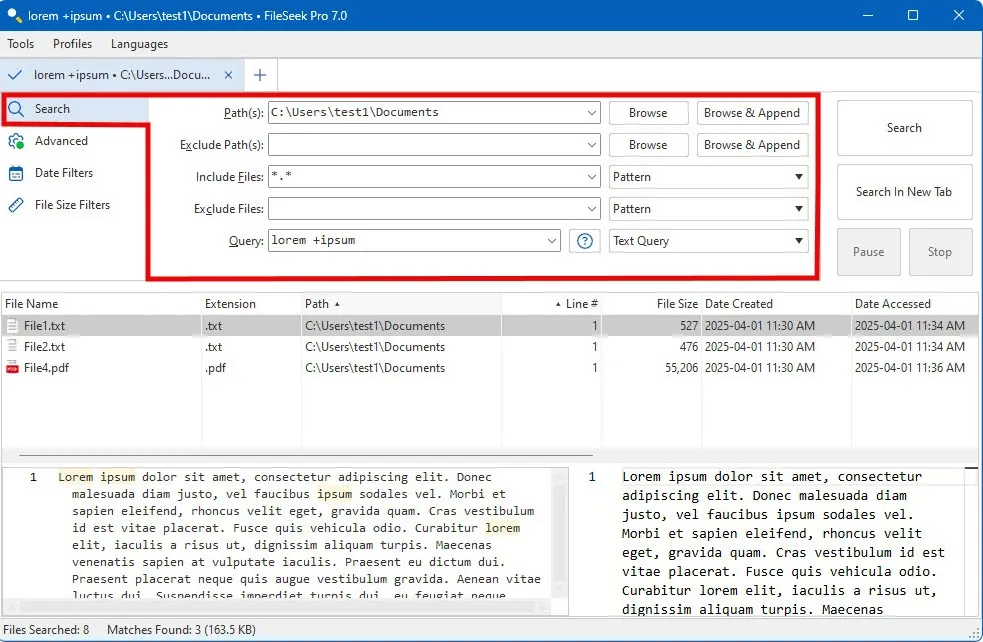
Image Source: FileSeek
Binary Fortress’s FileSeek strikes a perfect balance between speed and powerful content searching without background indexing overhead. This versatile windows search tool lets users search through files with simple queries or complex regular expressions.
FileSeek Key Features
FileSeek uses multi-threading technology to improve search speed and outperforms standard Windows search [21]. The tabbed interface lets you run multiple searches at once without opening new windows [21]. You can save common search criteria as search profiles for quick access [21].
The software’s ability to search inside file contents with regular expressions support makes it stand out [22]. You can fine-tune your searches by date range, file size, or file types with customizable filters [22]. A portable version lets you carry the tool on USB drives [23].
FileSeek Pros and Cons
Pros:
-
Searches multiple files and folders at once [24]
-
Lets you work on other tasks while searching [24]
-
Shows immediate results as you type [25]
-
Supports grep-style pattern matching for advanced users [23]
-
Runs without background indexing that could slow down your system [21]
Cons:
-
Searches only local machine files [24]
-
Paid version restricts some advanced features [23]
-
Simple UI might look plain compared to competitors [23]
-
Limited tool integration options [25]
FileSeek Pricing
FileSeek comes with a free version and a 30-day Pro trial [26]. The Pro version has four tiers: Pro Standard ($19 per machine, lifetime license), Pro Personal ($29 for unlimited personal computers plus one company computer), Pro Site ($199 for unlimited machines at one site), and Pro Enterprise ($899 for unlimited computers across multiple locations) [3].
FileSeek Best Use Case
FileSeek shines when searching file content rather than just filenames [27]. Programmers and software developers find it valuable to locate specific code or text within multiple files [28]. Users with large document collections benefit from its speed and precision [25]. The multi-threading feature helps you search through extensive file repositories without slowing down your system [21].
Quick Search
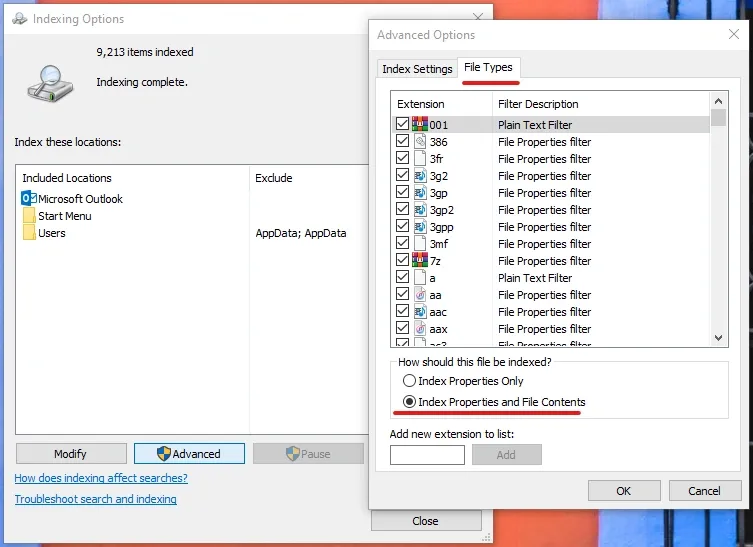
Image Source: Anytxt Searcher
Quick Search by Glarysoft delivers lightning-fast desktop search results in seconds. This straightforward windows search tool emphasizes speed and simplicity when locating files.
Quick Search Key Features
The tool shows immediate results as users type and displays file details like name, path, size, and attributes [11]. Its accessible interface comes with two main controls: a search box and a results panel that provides instant feedback [29]. Quick Search includes search filters to narrow results and limit search range to optimize performance [29]. The program creates indexes of files and folders from all connected drives, which enables detailed searches in multiple storage locations [9].
Quick Search Pros and Cons
Pros:
-
Results appear in less than a second [29]
-
Uses minimal system resources [11]
-
Clean interface with simple controls [29]
-
100% malware-free certification from Softpedia [29]
-
Runs much faster than Windows Search [11]
Cons:
-
Shows many similar unwanted files [29]
-
Simple functionality compared to premium alternatives
-
Limited advanced filtering options
-
No content preview for all file types
-
Large result sets need scrolling through slider bar [11]
Quick Search Pricing
Quick Search costs nothing to use [11]. Users get access to all features without any payment or subscription [29]. The software has no hidden costs or premium tiers, making it available to users with any budget.
Quick Search Best Use Case
Quick Search helps users who need a faster option than Windows’ built-in search [11]. It excels at finding documents and folders quickly by keywords on local hard drives [11]. Users frustrated with Windows Search will appreciate its quick results and low resource usage [11].
WizFile
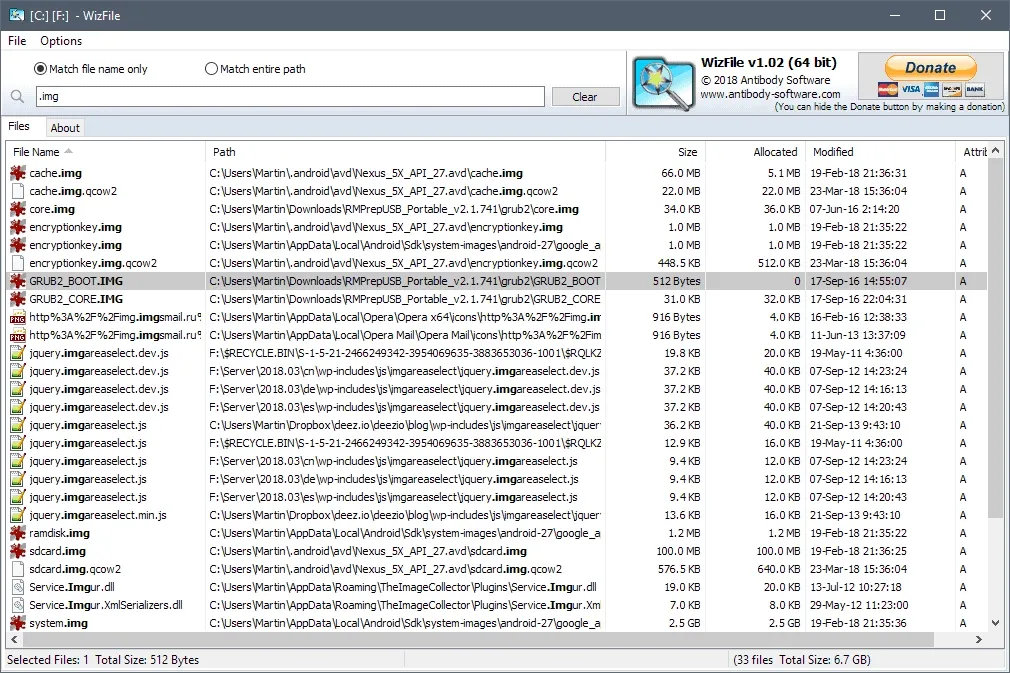
Image Source: Ghacks.net
WizFile connects directly to the Master File Table (MFT) of NTFS drives and delivers search results as you type [7]. Antibody Software, which developed WizTree, created this windows search tool to quickly locate files without external databases.
WizFile Key Features
The software’s biggest advantage comes from its “Super FAST” scanning technique that reads the MFT straight from disk [7]. Users can work with multiple search terms, wildcards, and since version 3.09, regular expressions [30]. The system watches file system changes and updates search results automatically when modifications happen [31]. Version 3.0 brought advanced filtering options to sort by size, date, and file type [32].
WizFile Pros and Cons
Pros:
-
Searches NTFS drives at exceptional speeds [7]
-
Monitors file system changes continuously [31]
-
Uses minimal resources with memory-only operations [33]
-
Lets users create precise search filters [32]
Cons:
-
Works only with NTFS formatted drives [34]
-
Needs administrator rights to perform optimally [8]
-
Lacks built-in content search features [8]
-
Consumes more memory when handling numerous files [35]
WizFile Pricing
Personal users can access WizFile free [36]. Business licenses follow organization size: Individual ($20), Micro Business ($80), Small Business ($150), Medium Business ($300), Large Business ($400), and Enterprise options ($600-$140,000) [36].
WizFile Best Use Case
Users who modify files frequently will find WizFile particularly useful [8]. The software works best when managing extensive file collections on NTFS drives without background indexing overhead.
SearchMyFiles
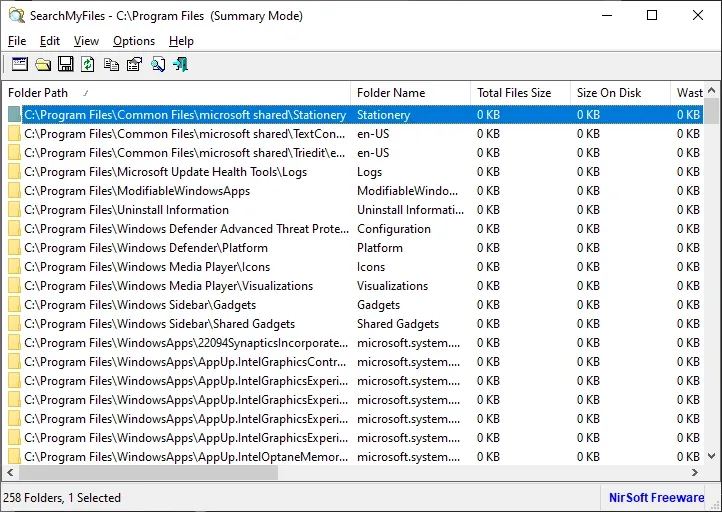
Image Source: NirBlog – NirSoft
NirSoft’s SearchMyFiles provides a resilient alternative to Windows’ standard search functionality. Users can locate files with precision using multiple criteria. This lightweight windows search tool works without installation and runs from USB drives [10].
SearchMyFiles Key Features
The tool helps users find files through wildcard searches, creation/modification dates, file attributes, content searches, and size parameters [10]. It goes beyond standard searches with specialized modes like duplicate file detection and duplicate name searching with content comparison [10]. Users can analyze folders instead of listing individual files with its summary mode [10]. The empty folder detection feature helps users clean unused directories [10].
SearchMyFiles Pros and Cons
Pros:
-
No installation needed, can run from USB drives [37]
-
Complete search parameters in one window [37]
-
Results display quickly and efficiently [37]
-
Supports searching network drives [12]
Cons:
-
Too many search parameters might confuse beginners [37]
-
Separate windows for search options and results [12]
-
Verbose instructions in README format [37]
-
No progress bar during searches [38]
SearchMyFiles Pricing
SearchMyFiles comes free to use [10]. Users get access to all features without any payment [38].
SearchMyFiles Best Use Case
We used this tool when standard Windows search falls short [10]. It works best to find files with specific creation dates and exact size ranges [10]. Network administrators find great value in its network drive search capabilities [12].
X1 Search
Image Source: X1 Discovery
X1 Search distinguishes itself as a detailed windows search tool that combines searches from multiple data sources including local files, emails, and cloud platforms. This versatile solution helps users save hours of productivity each day through its advanced capabilities.
X1 Search Key Features
The patented fast-as-you-type search technology with built-in hit highlighting and full-fidelity preview forms the foundation of X1 Search [39]. The software provides unified search across Microsoft 365 (Teams, SharePoint, OneDrive, Exchange), Google Workspace, and local files in a single interface [15]. X1 Search version 10 added Slack integration that lets users search Slack alongside email and files [1]. Data indexing happens in-place instead of duplication, which helps maintain user permissions and delivers fast response times [1].
X1 Search Pros and Cons
Pros:
-
Searches emails, documents, local files, and cloud storage simultaneously [39]
-
Powerful filtering options and keyword highlighting make search easier [39]
-
Deep integration with email clients and Microsoft Teams [39]
-
Full preview capability without opening files [40]
Cons:
-
Costs more than other search tools [41]
-
Premium support needs yearly payment [41]
-
Setup and configuration can be complex [42]
-
Support response times need improvement [42]
X1 Search Pricing
Users can get X1 Search for $79.00 per year with support and upgrades [13]. Multi-term discounts reduce costs, with a three-year option available at $237.00 [43].
X1 Search Best Use Case
Business professionals who manage information in a variety of platforms will find X1 Search particularly useful [15]. Legal, corporate, and IT sectors that need quick information retrieval get the most value [42]. Users report saving “hours each work week” by finding information instantly in spam folders, archived emails, or Teams chats [40].
Copernic Desktop Search
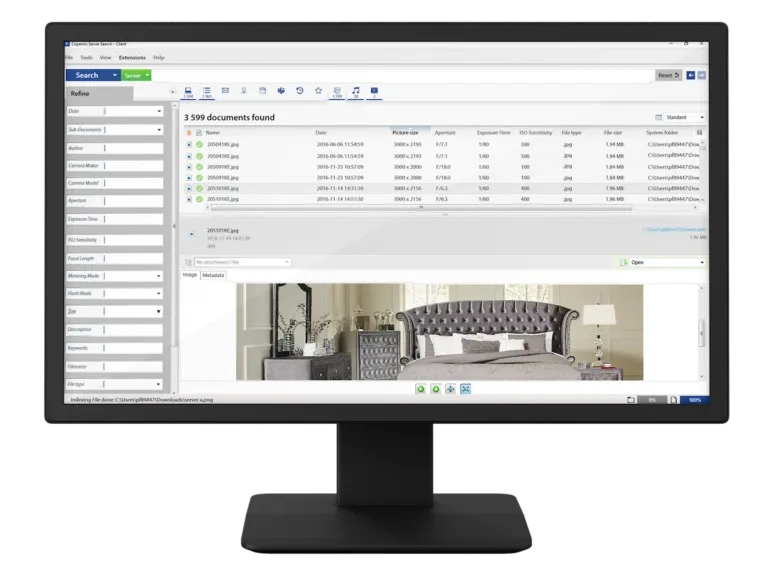
Image Source: Copernic Desktop Search
Copernic Desktop Search stands out as a powerful file search engine that fills the gap between simple search tools and enterprise-level solutions. This versatile Windows search tool indexes and searches through more than 170 file types and emails on desktops, networks, and cloud storage [44].
Copernic Desktop Search Key Features
The software excels at finding relevant results when you search through documents of all types. Users can search inside Office files, PDFs, emails with attachments, and multimedia files [45]. The preview pane lets you view emails, documents, and compressed files without opening them [46]. Advanced search options include Boolean operators (AND, OR, NOT, NEAR) [47]. The software supports 11 languages: English, French, German, Spanish, Dutch, Portuguese, Italian, Russian, Mandarin, Japanese, and Korean [45].
Copernic Desktop Search Pros and Cons
Pros:
-
Indexes over 170 file types including proprietary formats [44]
-
Searches content inside compressed files (ZIP, RAR, 7ZIP) [14]
-
Provides secure local indexing with no third-party data sharing [48]
-
Combines smoothly with cloud services while maintaining their security protocols [47]
-
Supports multiple languages for document collections of all types [45]
Cons:
-
Costs more than simpler alternatives
-
Default 20MB document indexing limit unless customized [14]
-
Speed sometimes drops during indexing [49]
-
Device-based pricing affects multi-device setups [50]
-
Customer support response times need improvement [50]
Copernic Desktop Search Pricing
The software comes in three pricing tiers: Basic ($1.67), Advanced ($2.71), and Elite ($6.29) [51]. Users can test all features with a 30-day free trial before buying [14].
Copernic Desktop Search Best Use Case
Copernic works best in professional settings that manage large document collections on multiple platforms. Organizations can search network drives and cloud storage at the same time [52]. Law firms, government agencies, financial companies, and educational institutions find its search capabilities especially useful [48].
DocFetcher
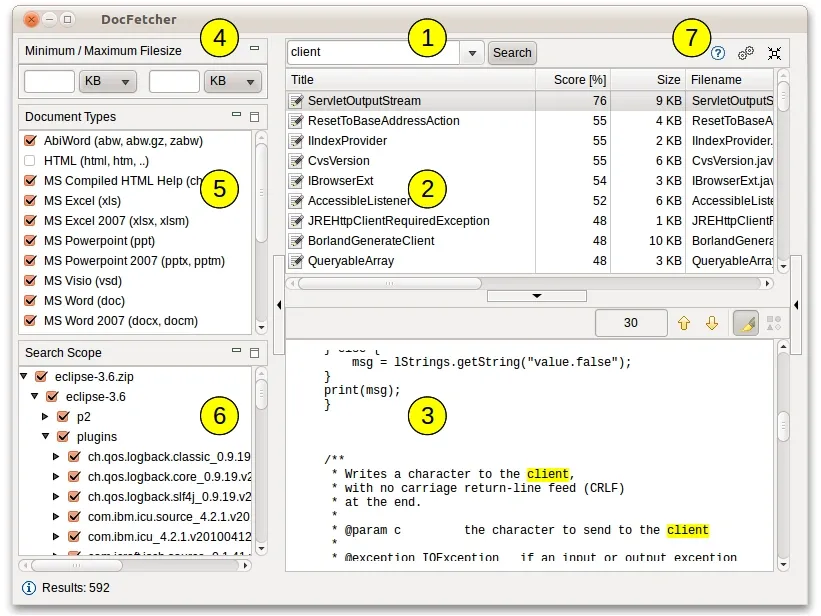
Image Source: SourceForge
DocFetcher is an open-source desktop search application that lets users search inside files instead of just finding them by name. This Java-based tool works on Windows, Linux, and macOS platforms since its release in 2007.
DocFetcher Key Features
The application uses Apache Lucene as its search engine and supports Unicode to handle characters from different languages reliably [5]. Users can search through many document formats including Microsoft Office, OpenDocument, PDF, EPUB, HTML, and plain text files [5]. The tool can also search inside ZIP, 7z, and RAR archives with no limit on nesting levels [53]. One of its smart features is HTML pair detection, which groups related HTML files and resource folders as single documents to keep searches clean [16].
DocFetcher Pros and Cons
Pros:
-
Your data stays private with no collection [16]
-
Works smoothly on Windows, Linux, and macOS [16]
-
You can run it from USB drives with the portable version [16]
-
You control which folders to index [53]
Cons:
-
Updates only fix bugs now [54]
-
Deep folder structures might cause crashes [54]
-
You need Java Runtime Environment installed [54]
-
Large datasets with problem files can slow it down [54]
DocFetcher Pricing
DocFetcher is free and open-source software under the Eclipse Public License [16]. For users who need more features, DocFetcher Pro and DocFetcher Server are available as paid options [55].
DocFetcher Best Use Case
The tool helps users create searchable document repositories they can move between devices [16]. These collections work great on USB drives, CD-ROMs, encrypted volumes, or cloud services for synchronization [16].
AnyTXT Searcher
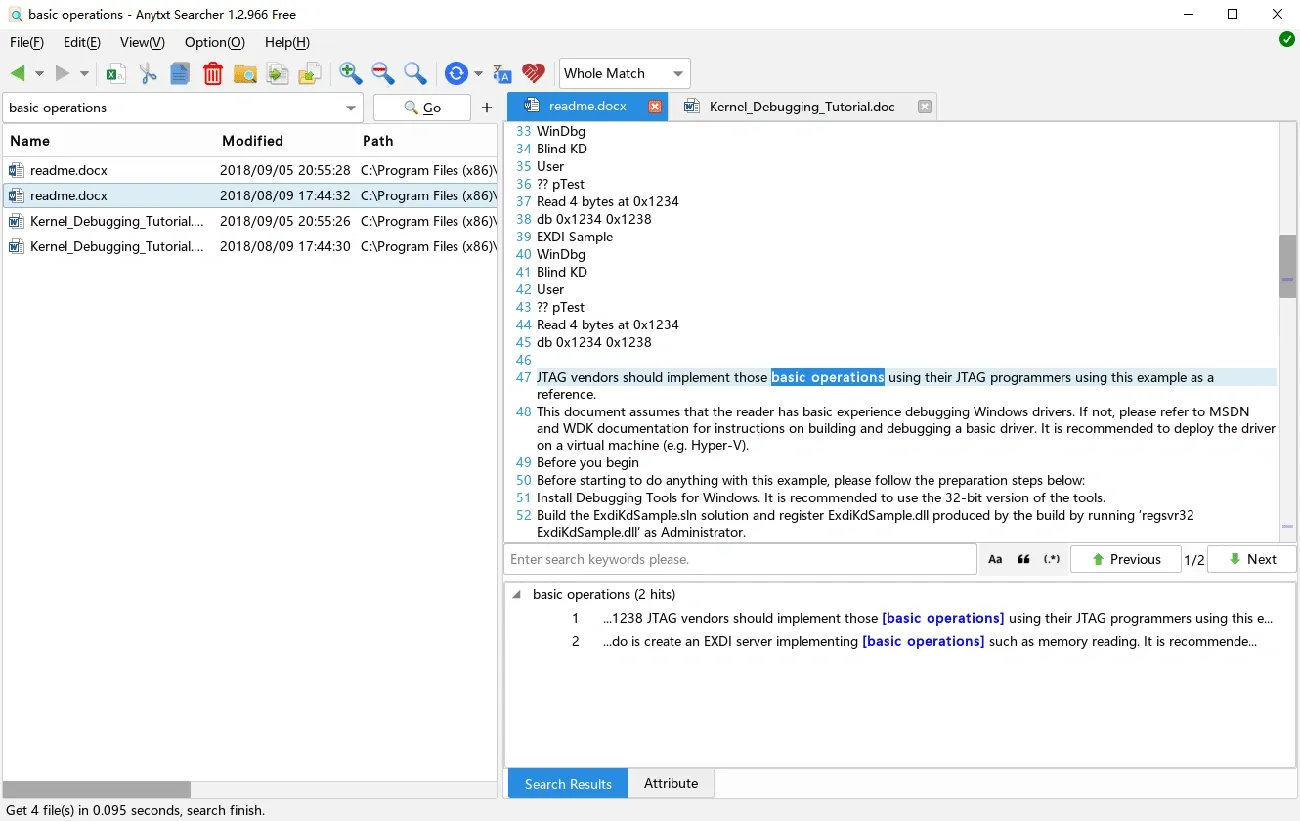
Image Source: anytxt.net
AnyTXT Searcher is a powerful file content search application that works like a local disk Google search engine. It performs better than Windows search in speed and functionality [56].
AnyTXT Searcher Key Features
The core of AnyTXT is its strong document parsing engine that extracts text from common file formats without needing extra software [57]. The tool supports many file types including plain text, Microsoft Office documents, PDFs, OneNote files, eBooks, and mind map formats [57]. AnyTXT also has multilingual OCR capabilities that can extract text from images and scanned documents [6]. The software shows search results instantly [19].
AnyTXT Searcher Pros and Cons
Pros:
-
Quick search with immediate results [19]
-
Complete Microsoft Office support [19]
-
PDF content indexing [19]
-
Better performance with SSD optimization [19]
-
Works with non-English languages [19]
Cons:
-
The interface’s tiny text can make it look cluttered [58]
-
Advanced features lack proper documentation
-
New users might struggle with navigation
-
Users report index database corruption [58]
AnyTXT Searcher Pricing
Users can download and use AnyTXT Searcher for free [6]. No premium versions or services exist at this time [2].
AnyTXT Searcher Best Use Case
AnyTXT helps users manage their time better by finding files quickly across their systems [20]. The tool works best for people who need to search within document content rather than just filenames [57].
Comparison Table
|
Search Tool |
Key Features |
Pricing |
Best Use Case |
Resource Usage |
Content Search |
Installation Type |
|
Everything |
Live file system monitoring, Boolean operators support |
Free (Server version for enterprise) |
Large file collections, filename-based searches |
14MB RAM, 9MB disk space |
Limited (not indexed) |
Standard/Portable |
|
Listary |
Find As You Type, File Explorer integration, smart sorting |
Free + Pro ($19.95) |
Frequent file access, workflow optimization |
Minimal |
Yes |
Standard |
|
Agent Ransack |
Multi-phase search, Boolean expressions, JIT searching |
Free + Pro ($79-$206) |
Deep content searching, programming/technical use |
Not mentioned |
Yes (extensive) |
Windows only |
|
SeekFast |
No indexing needed, relevance-based results |
Free (50 files) + Paid ($29-$145) |
Document content searching, case file management |
Not mentioned |
Yes |
Standard |
|
UltraSearch |
Direct MFT access, no indexing needed |
Free + Pro ($33) |
System administration, large NTFS collections |
Minimal |
Yes (limited) |
Standard/Portable |
|
FileSeek |
Multi-threading, tabbed interface |
Free + Pro ($19-$899) |
Code/text content searching, large repositories |
Not mentioned |
Yes |
Standard/Portable |
|
Quick Search |
Live results, user-friendly interface |
Free |
Simple file location needs |
Minimal |
Not mentioned |
Standard |
|
WizFile |
Direct MFT access, live monitoring |
Free + Commercial ($20-$140,000) |
NTFS drive management |
Memory-only operation |
No |
Standard |
|
SearchMyFiles |
Duplicate detection, empty folder finding |
Free |
Precise parameter searches, network drives |
Not mentioned |
Yes |
Portable |
|
X1 Search |
Unified search across platforms, preview options |
$79/year |
Multi-platform business use |
Not mentioned |
Yes |
Standard |
|
Copernic |
170+ file types support, 11 languages |
$1.67-$6.29/month |
Enterprise document management |
Not mentioned |
Yes (extensive) |
Standard |
|
DocFetcher |
Archive support, HTML pair detection |
Free (Open Source) |
Portable document repositories |
Not mentioned |
Yes |
Standard/Portable |
|
AnyTXT |
OCR capability, live search |
Free |
Document content searching |
Not mentioned |
Yes (with OCR) |
Standard |
Conclusion
The right file search engine can optimize your workflow and save hours you’d waste waiting for Windows’ native search to work. We tested 13 powerful alternatives that work better than standard Windows search in many ways.
These tools come with their own strengths based on what you need. Everything and WizFile are lightning-fast at filename searches through direct MFT access. Agent Ransack and SeekFast work best for searching file contents. X1 Search lets you search across multiple platforms including cloud storage and email in one go.
System requirements are different for each tool. Everything needs just 14MB of RAM to handle millions of files, which makes it ideal for older systems with limited resources. Listary improves workflow by using smart sorting algorithms that put your most-used files first.
Price points vary among these search engines. Quality options like Everything, Quick Search, and SearchMyFiles are free to use. X1 Search and Copernic target business users with premium features in their subscription plans.
Your specific needs will determine the best choice. Users who mostly search filenames might like Everything or UltraSearch better. Professionals who need to find specific content in documents would get more value from AnyTXT Searcher or DocFetcher. System admins who manage large file collections on network drives should look into UltraSearch Professional or WizFile’s commercial licenses.
These specialized alternatives will revolutionize how you work with your file system. The time you save on each search adds up to hours of extra productivity. This simple switch is a great way to improve your digital workflow.
Key Takeaways
Specialized file search engines can index around a million files in just one second, dramatically outperforming Windows’ notoriously slow built-in search functionality.
• Everything and WizFile deliver lightning-fast results by accessing NTFS Master File Tables directly, requiring minimal resources (14MB RAM for Everything) • Content-focused tools like Agent Ransack and SeekFast excel at searching inside documents rather than just filenames, ideal for professionals managing large document collections • Free options like Everything, Quick Search, and SearchMyFiles provide powerful functionality without cost, while premium tools offer enterprise features • Choose based on your primary need: filename searches (Everything/WizFile), content searching (Agent Ransack/SeekFast), or multi-platform integration (X1 Search) • Resource usage varies significantly – lightweight tools like Everything use minimal system resources while comprehensive solutions may require more memory
The right file search engine transforms workflow efficiency by recovering hours of productivity lost to slow searches, making this upgrade essential for anyone frustrated with Windows’ default search capabilities.
FAQs
Q1. What is the fastest file search engine for Windows? Everything is widely considered one of the fastest file search engines for Windows. It can index around a million files in just one second by directly accessing the Master File Table of NTFS drives.
Q2. Can I search file contents, not just filenames? Yes, several tools like Agent Ransack, SeekFast, and AnyTXT Searcher excel at searching within file contents. These are ideal for users who need to locate specific information inside documents.
Q3. Are there free alternatives to Windows Search? Absolutely. Many powerful file search tools are completely free, including Everything, Quick Search, and SearchMyFiles. These offer enhanced speed and functionality compared to Windows’ built-in search.
Q4. Which search tool is best for searching across multiple platforms? X1 Search is designed for searching across multiple platforms, including local files, emails, and cloud storage services like Microsoft 365 and Google Workspace. It’s particularly useful for business professionals managing information across various sources.
Q5. How much system resources do these search tools typically use? Resource usage varies significantly among different search tools. Lightweight options like Everything use minimal resources (about 14MB of RAM), while more comprehensive solutions may require additional memory. Many tools, such as UltraSearch, operate without maintaining large index files, further reducing their impact on system resources.
References
[1] – https://www.x1.com/blog/x1-search-version-10-a-game-changer-for-modern-enterprise-search/
[2] – https://www.trustradius.com/products/anytxt-searcher/pricing
[3] – https://www.fileseek.ca/Purchase/
[4] – https://www.softwaresuggest.com/ultrasearch
[5] – https://en.wikipedia.org/wiki/DocFetcher
[6] – https://anytxt.net/anytxt-searcher-a-comprehensive-guide-to-this-free-desktop-search-tool/
[7] – https://antibody-software.com/wizfile/
[8] – https://techpp.com/2024/07/31/best-file-search-tools-for-windows/
[9] – https://www.lifewire.com/11-free-file-search-tools-1356644
[10] – https://www.nirsoft.net/utils/search_my_files.html
[11] – https://download.cnet.com/quick-search/3000-2248_4-75447785.html
[12] – https://www.snapfiles.com/userreviews/111709/SearchMyFiles.html
[13] – https://www.g2.com/products/x1-search/pricing
[14] – https://www.dealarious.com/blog/copernic-desktop-search-review/?srsltid=AfmBOooSLeyQY5WN6-urySr8ozjHZ7yhQF_Kb-9a6n_KlA8bUij8vOzz
[15] – https://www.x1.com/solutions/x1-search/
[16] – https://docfetcher.sourceforge.io/
[17] – https://www.jam-software.com/blog/ultrasearch-file-content-search.shtml
[18] – https://malwaretips.com/threads/everything-vs-ultrasearch.132496/
[19] – https://www.slant.co/topics/817/~best-desktop-search-tools-for-windows
[20] – https://anytxt.net/how-to-use-desktop-search-to-improve-your-time-management/
[21] – https://www.fileseek.ca/
[22] – https://www.fileseek.ca/Compare/
[23] – https://windowsforum.com/threads/best-free-file-search-tools-for-windows-11-speed-accuracy-and-customization.364382/
[24] – https://www.directive.com/blog/345-tired-of-windows-search-try-this-free-file-search-utility-file-seek.html?tmpl=component&print=1&format=print
[25] – https://compareyourtech.com/listing/fileseek/
[26] – https://www.fileseek.ca/Download/
[27] – https://www.fileseek.ca/Discussions/View/basic-searching-with-fileseek/?ID=997e64e1-f9e0-41a9-9e1a-029c71cc9399
[28] – https://www.fileseek.ca/Customers/
[29] – https://www.glarysoft.com/quick-search/
[30] – https://antibody-software.com/wizfile/download
[31] – https://antibody-software.com/wizfile/about
[32] – https://www.ghacks.net/2020/11/27/wizfile-3-00-massive-update-for-fastest-file-search-tool/
[33] – https://www.reddit.com/r/sysadmin/comments/8i09ke/wizfile_is_a_portable_and_extremely_rapid_file/
[34] – https://www.portablefreeware.com/forums/viewtopic.php?t=23778
[35] – https://www.ghacks.net/2018/04/09/wizfile-is-an-ultra-fast-windows-search-tool/
[36] – https://antibody-software.com/wizfile/donate
[37] – https://www.yahoo.com/news/searchmyfiles-review-194800499.html
[38] – https://searchmyfiles.en.softonic.com/
[39] – https://www.x1.com/blog/microsoft-copilot-explains-why-x1-search-is-far-better-than-windows-search/
[40] – https://www.x1.com/blog/new-x1-search-9-provides-the-best-means-to-search-your-microsoft-365-data-sources/
[41] – https://www.pcmag.com/reviews/x1-search
[42] – https://softwarefinder.com/analytics-software/x1-search
[43] – https://www.x1.com/solutions/purchase-options/
[44] – https://copernic.com/en/
[45] – https://copernic.com/en/2023/03/31/why-copernic-search-tools-are-the-ultimate-solution-for-finding-your-files/
[46] – https://www.dealarious.com/blog/copernic-desktop-search-review/?srsltid=AfmBOoolIVYL3Wkb3iQhzGweQ6UzFSyUeQGLXx4QZM2W5NZY7MMWG8f7
[47] – https://copernic.com/en/2025/04/17/10-ways-copernic-desktop-cloud-search-can-supercharge-your-workflow/
[48] – https://copernic.com/en/2023/06/13/dont-settle-for-less-9-reasons-copernic-is-the-superior-desktop-search-engine/
[49] – https://www.capterra.com/p/9020/Copernic-Desktop-Search/reviews/
[50] – https://subscribed.fyi/copernic-desktop-search/review/
[51] – https://www.capterra.com/p/9020/Copernic-Desktop-Search/pricing/
[52] – https://copernic.com/en/2025/01/31/cloud-and-platform-services-using-copernic-desktop-cloud-search-to-streamline-your-technology-company/
[53] – https://docfetcherpro.com/features/
[54] – https://sourceforge.net/p/docfetcher/wiki/FAQ/
[55] – https://docfetcherpro.com/
[56] – https://www.trustradius.com/products/anytxt-searcher/reviews
[57] – https://anytxt.net/
[58] – https://www.wilderssecurity.com/threads/anytxt-searcher-is-a-freeware-tool-that-can-search-for-text-inside-documents-instantly.432862/